
How to get a job
Ten steps from signing up to your first day. Everything here is free for job seekers.
Create your account
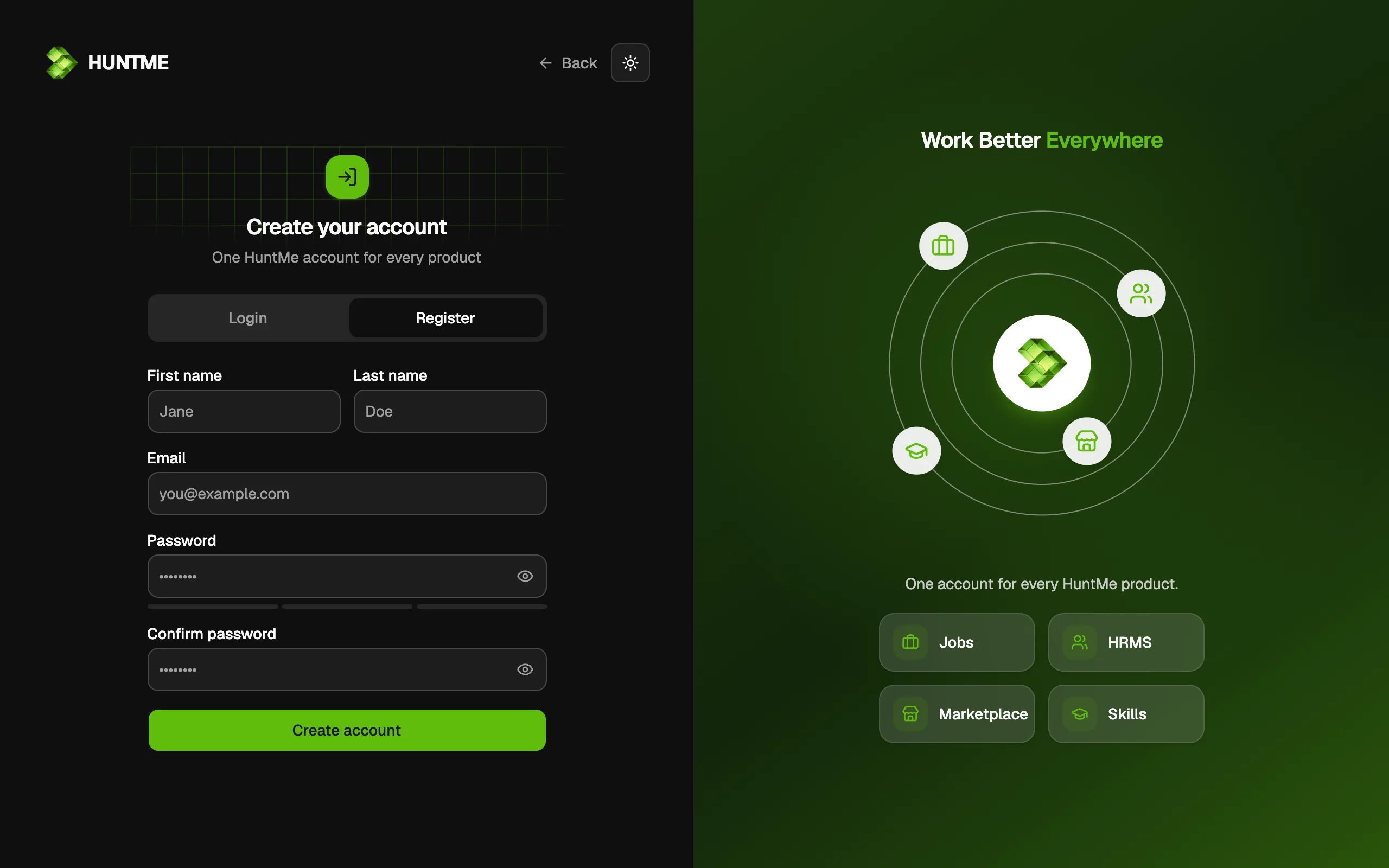
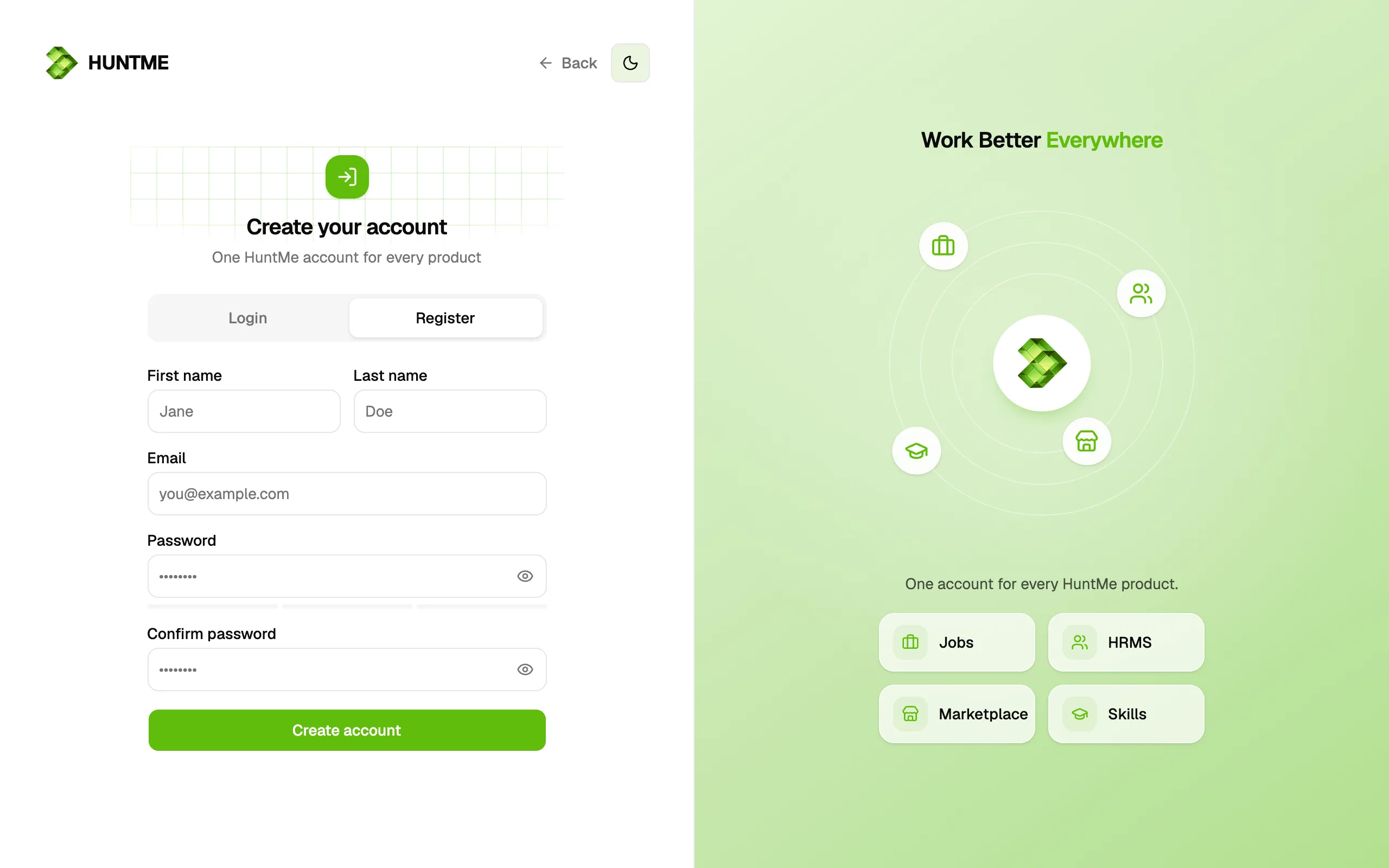
Press Log in at the top of any page, then Sign up. You create the account on the HUNTME sign-in page and come back here when it is done.
 Enlarge
Choose Find work
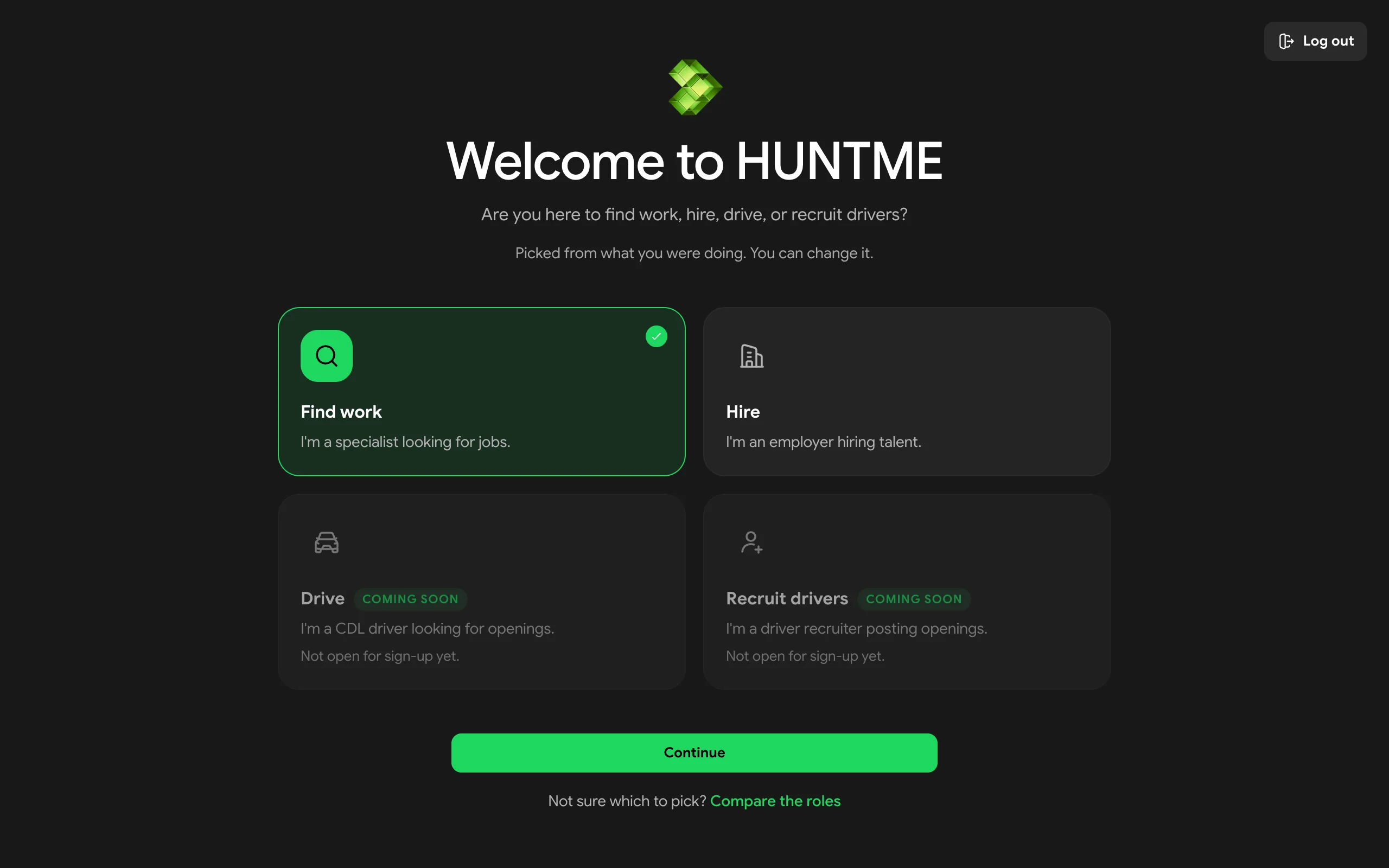
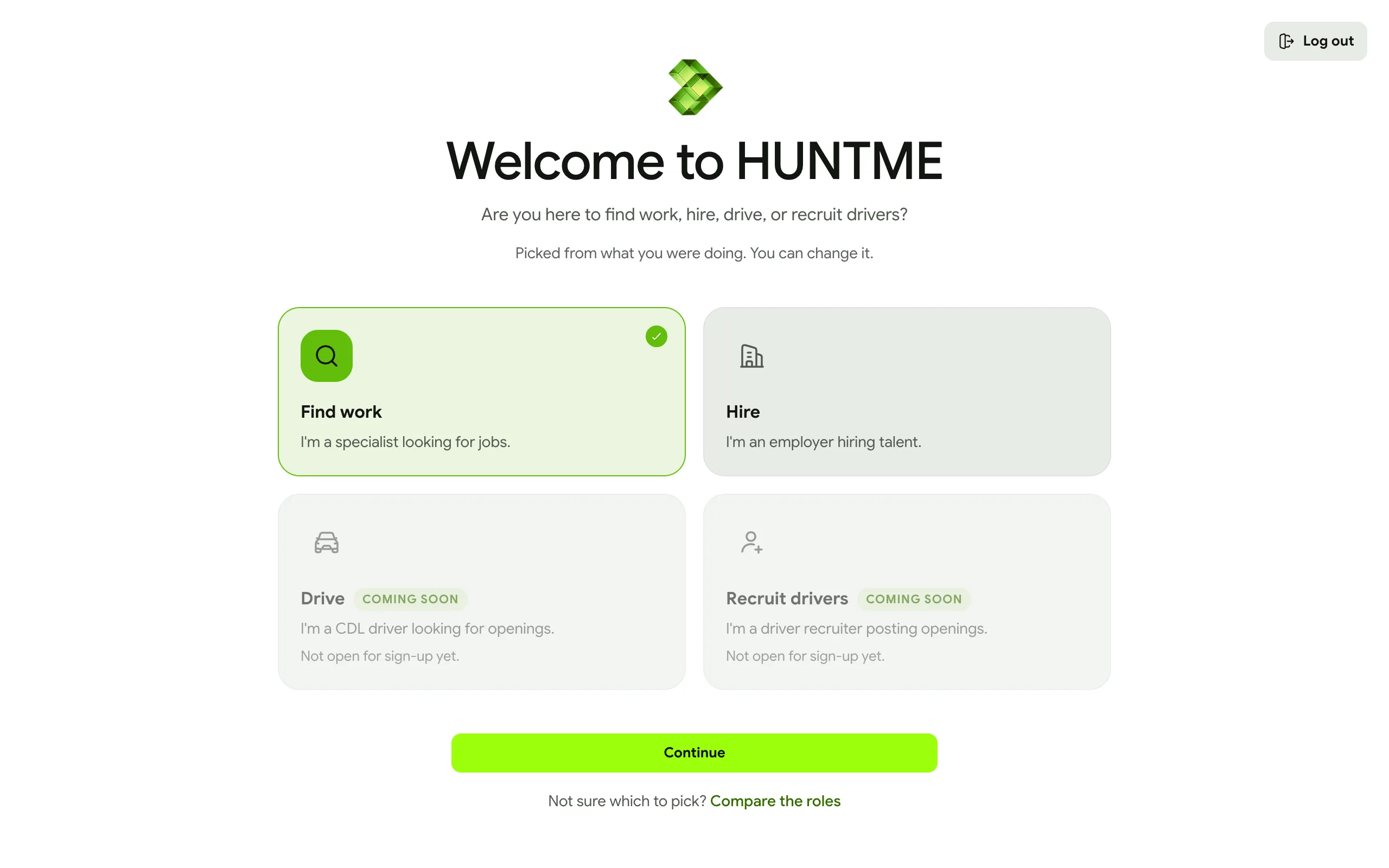
HUNTME asks one question the first time: what brings you here. Pick Find work and press Continue.
Check your choice before you continue: you can't change it later. If you came from a job, Find work may already be picked.
 Enlarge
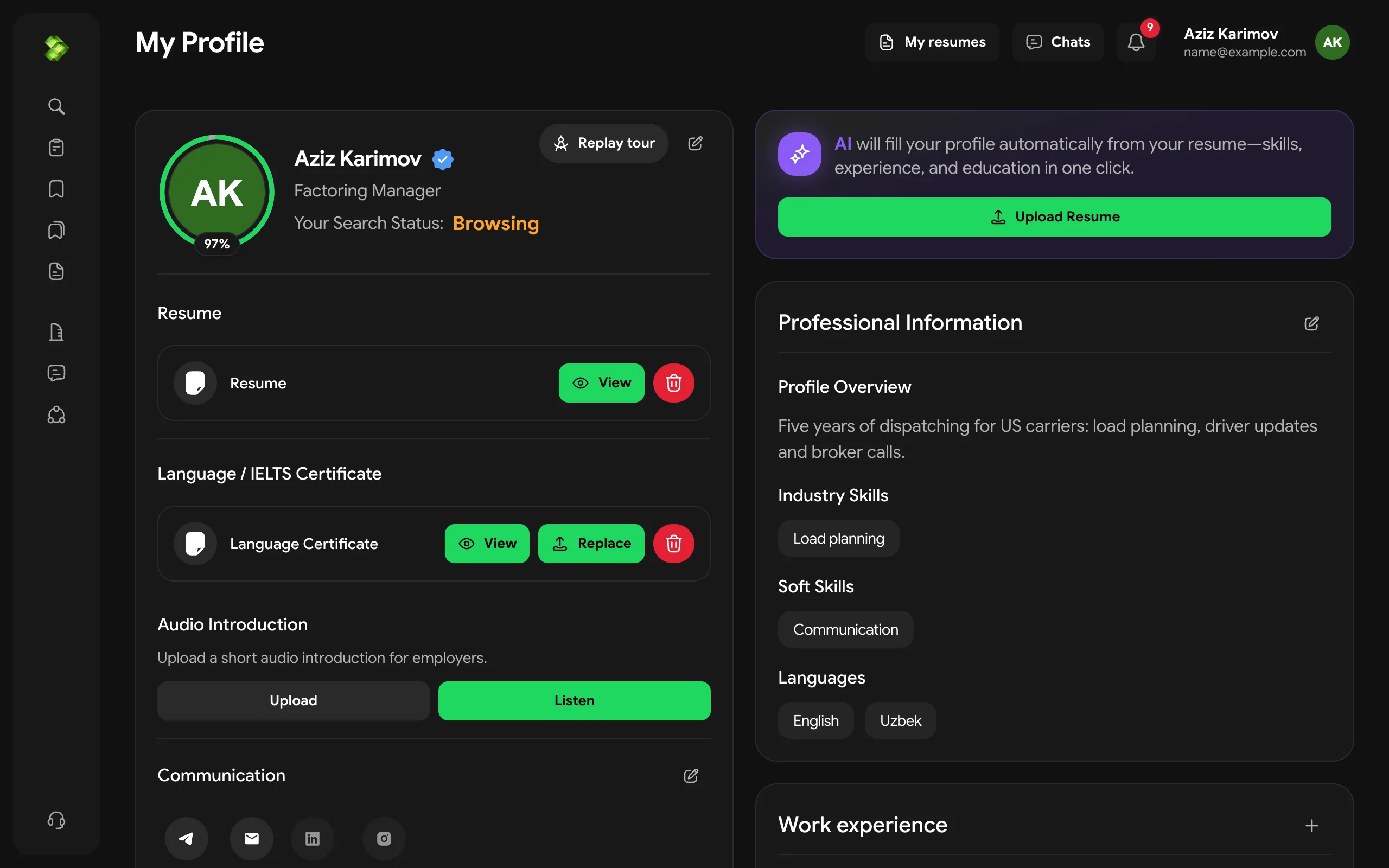
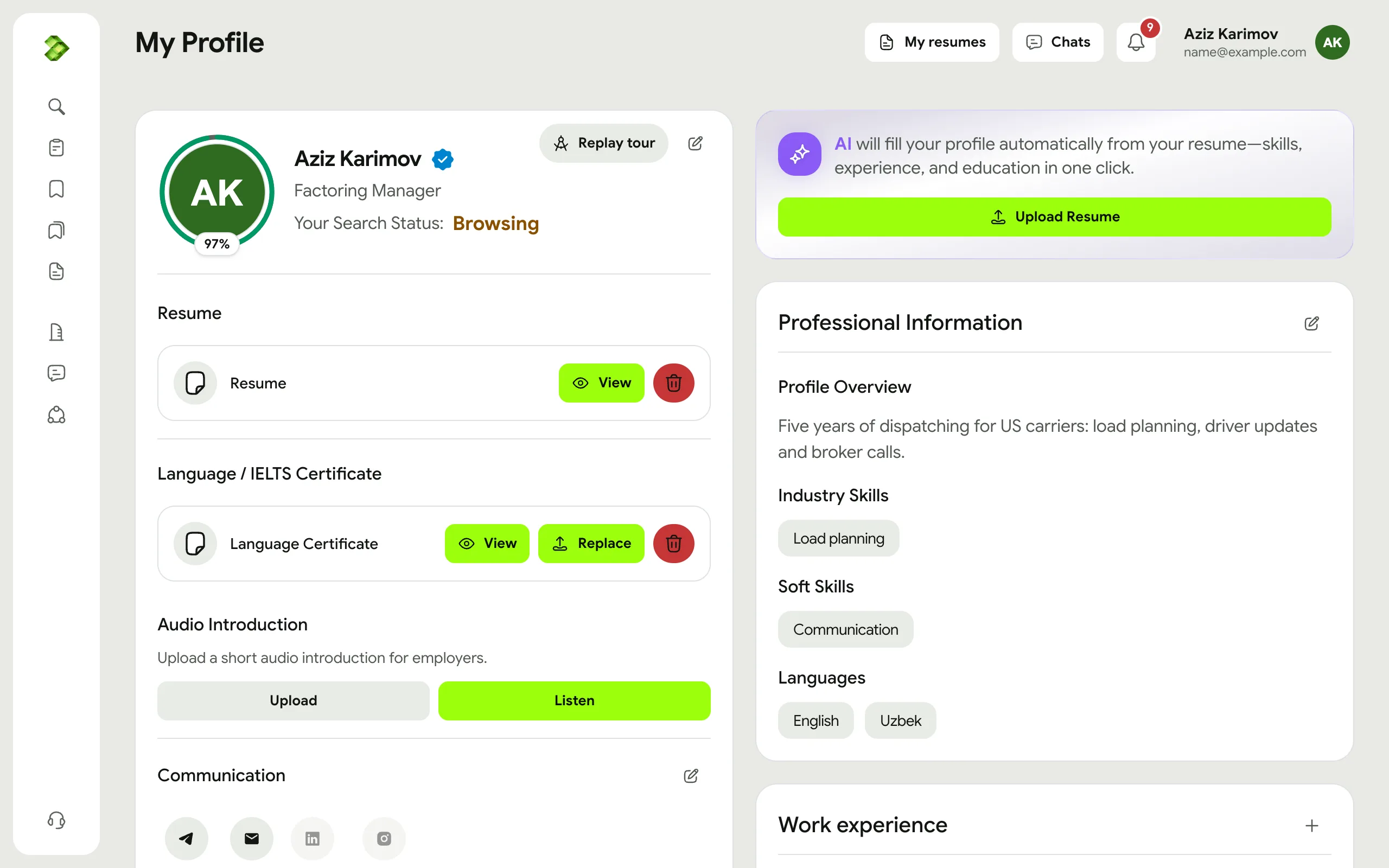
Fill in your profile
Open Profile from the account menu. Add your personal details, your position, skills and languages, your work history and what you expect from a job.
You need a complete profile to apply. The percentage on the page shows how far you are.
 Enlarge
Create a resume
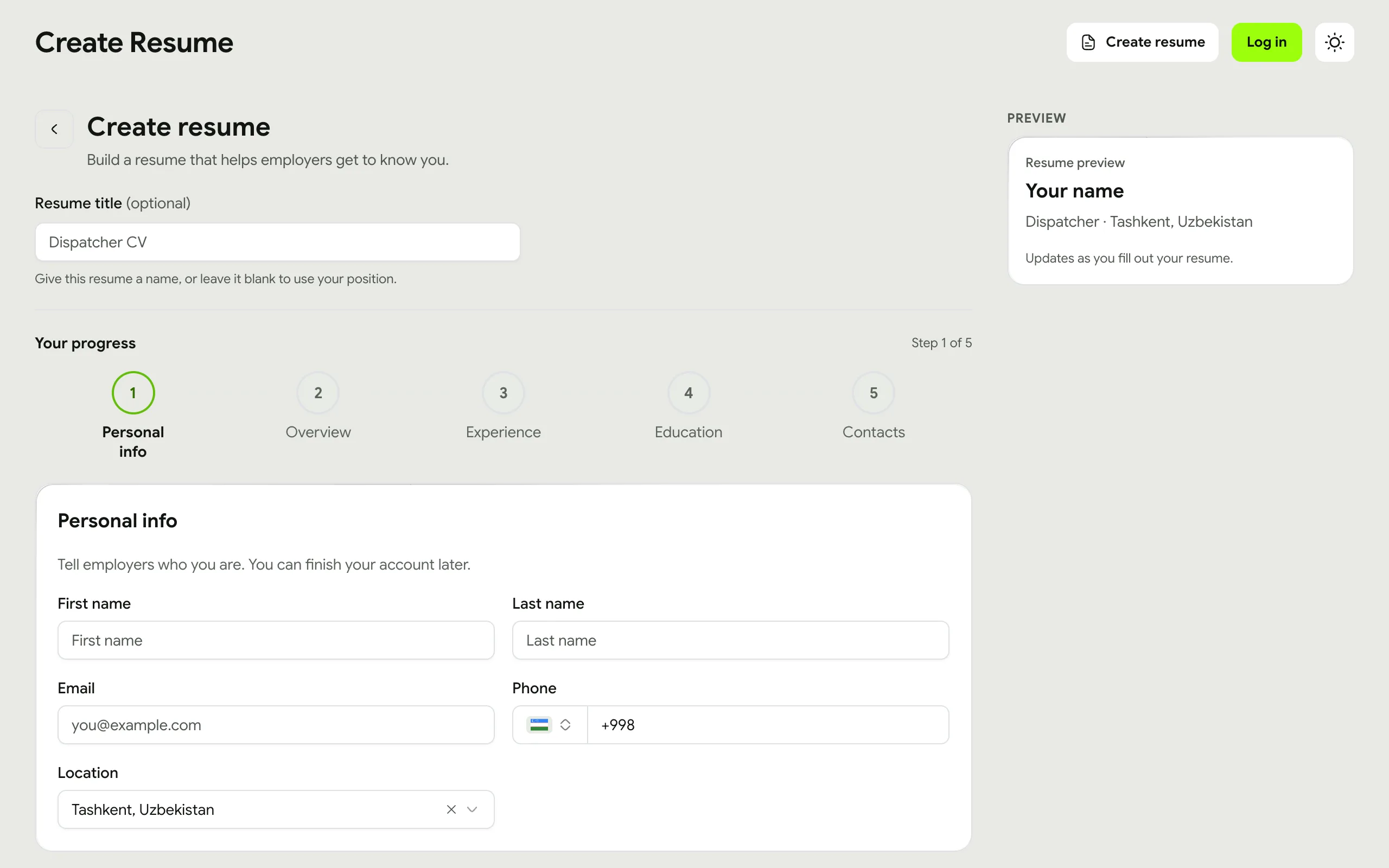
Open My Resumes and choose Build from my profile or Start from scratch. A short form walks you through it. If you have more than one resume, you can make one your default.
In the menu: My Resumes
Start a resume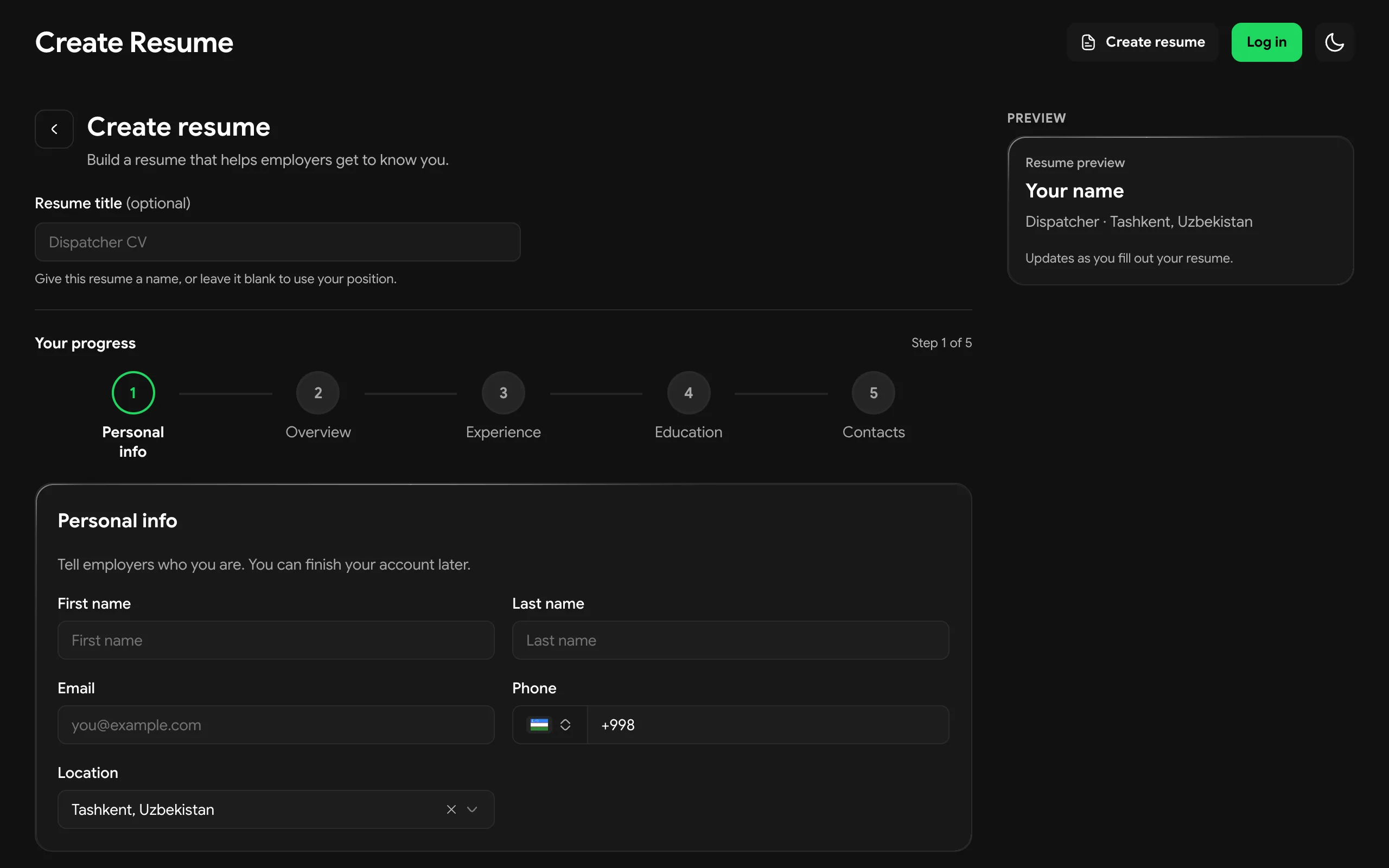 Enlarge
Find jobs
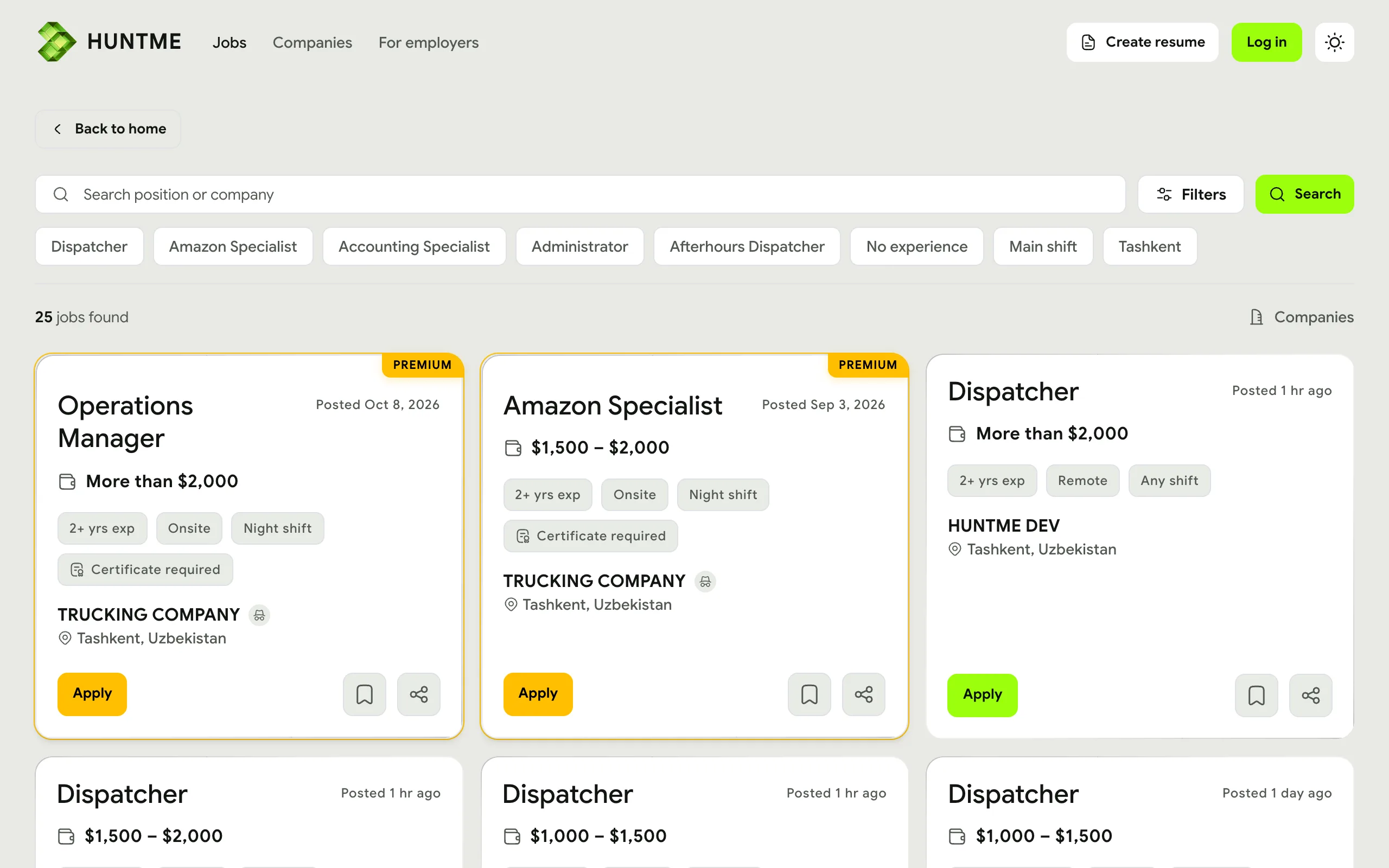
Search by position or company on the job board. Filters narrow it down by position, location, experience and shift, or show remote jobs only.
Once your profile has a position, the Suggested tab shows jobs that match it.
Press Save on a job to keep it in Saved Jobs, or Follow a company, on its page or on a job page, to keep it in Following. New jobs also go out on our Telegram channel, @huntmejob.
In the menu: Find Jobs, Saved Jobs, Following
Browse jobs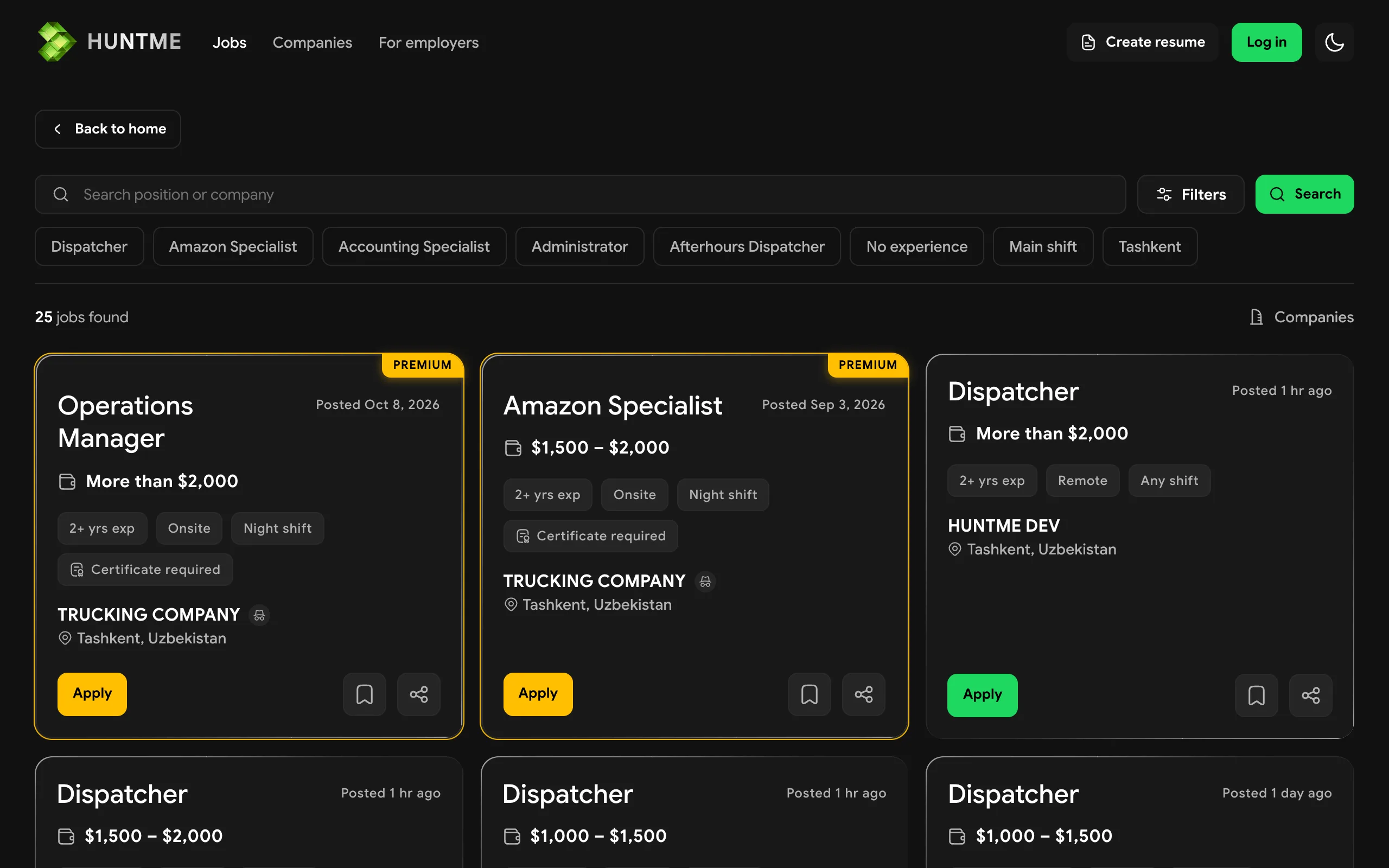 Enlarge
Open a job and apply
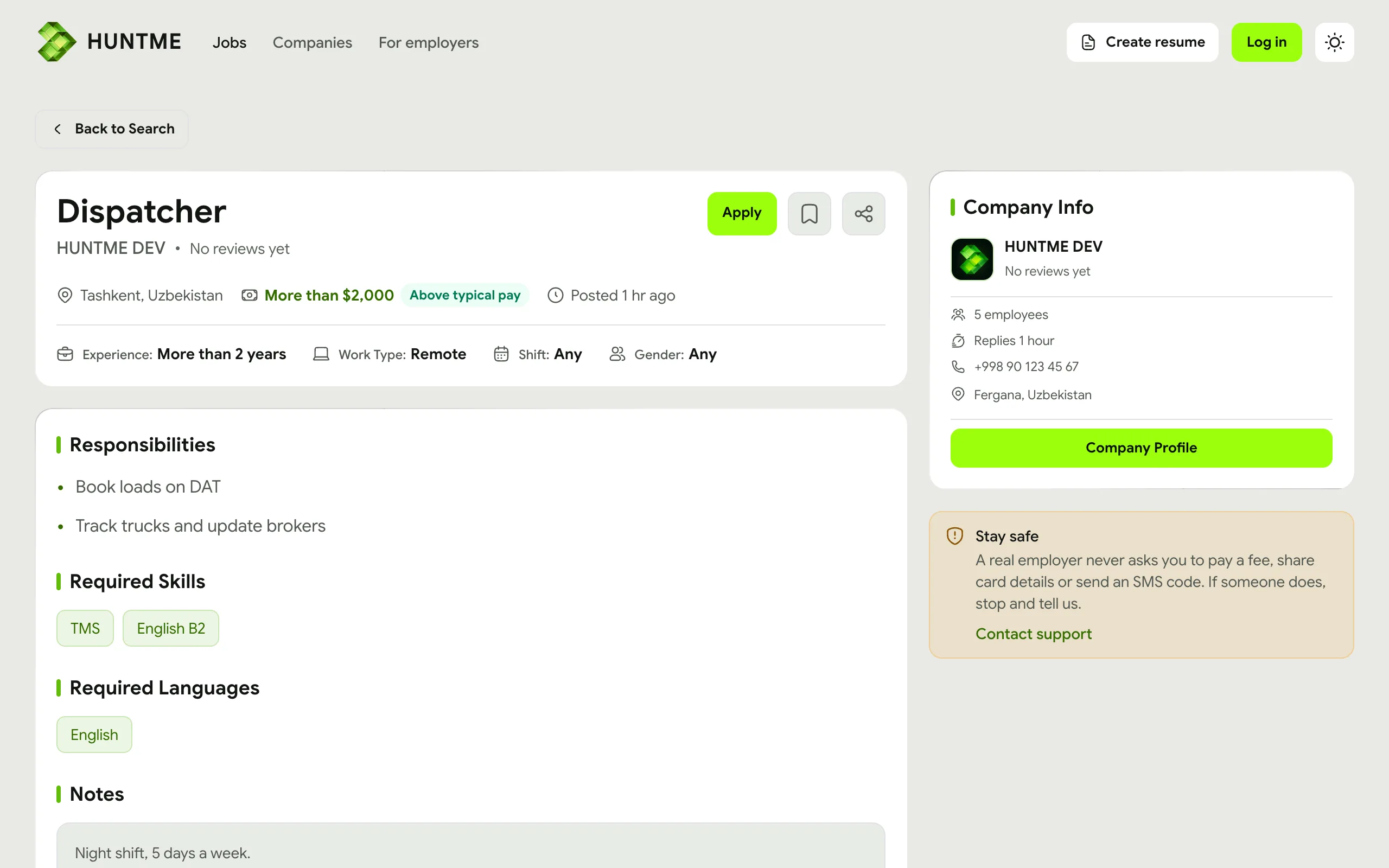
A job page shows the pay, schedule, requirements and the company. Press Apply, pick the resume to send and confirm.
Some jobs ask for more, such as an IELTS certificate or an audio introduction. Apply tells you what is missing.
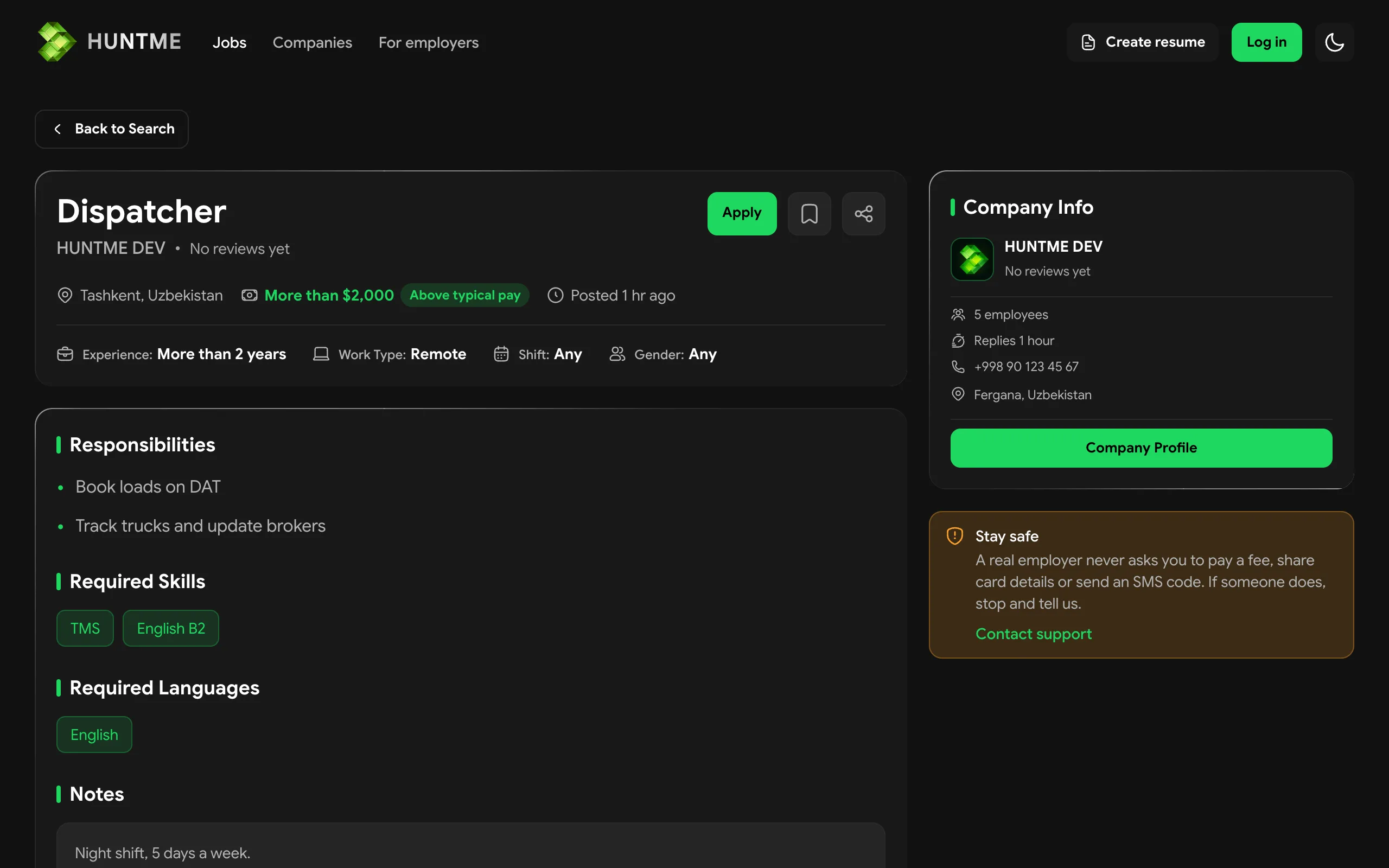 Enlarge
Follow your application
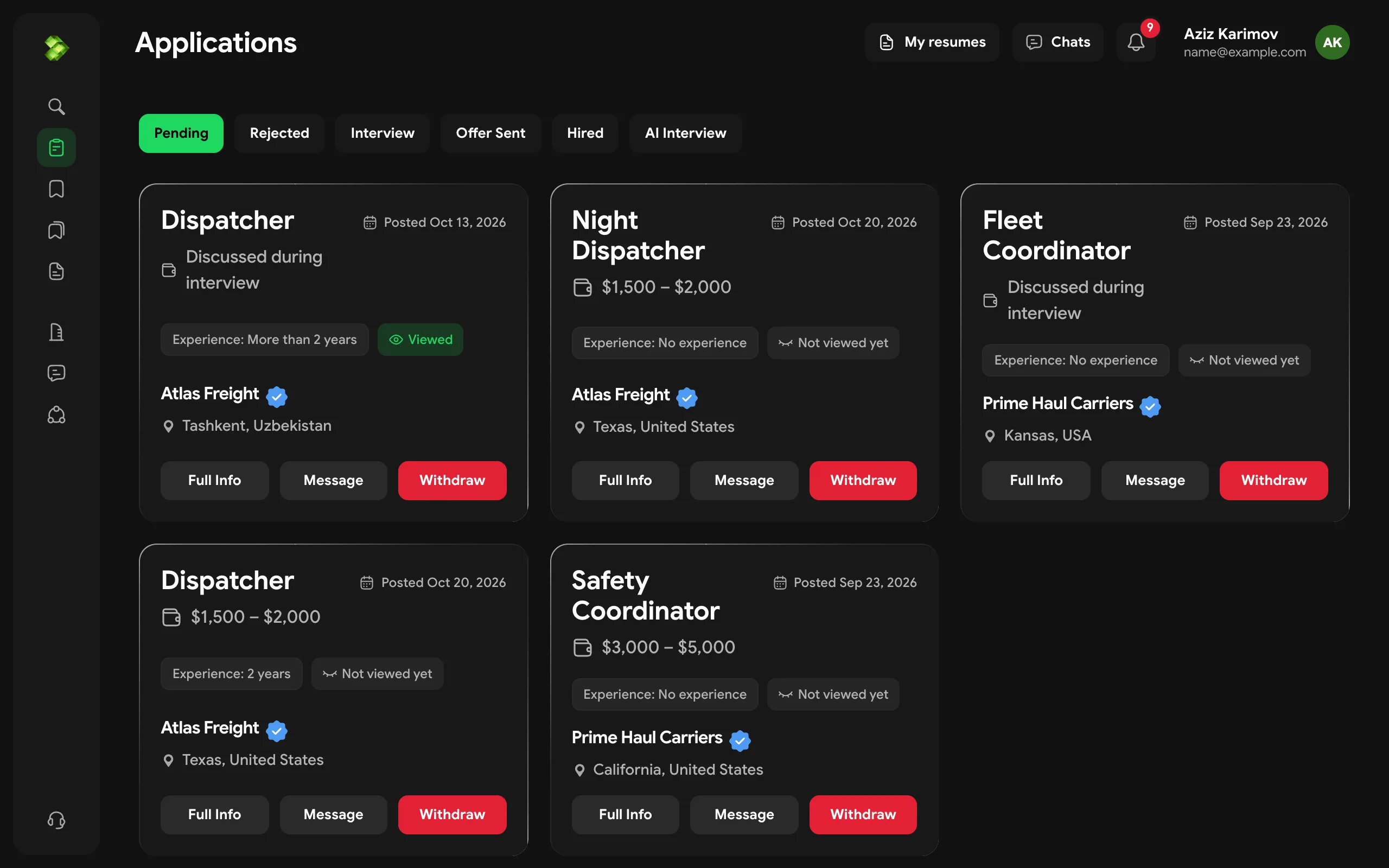
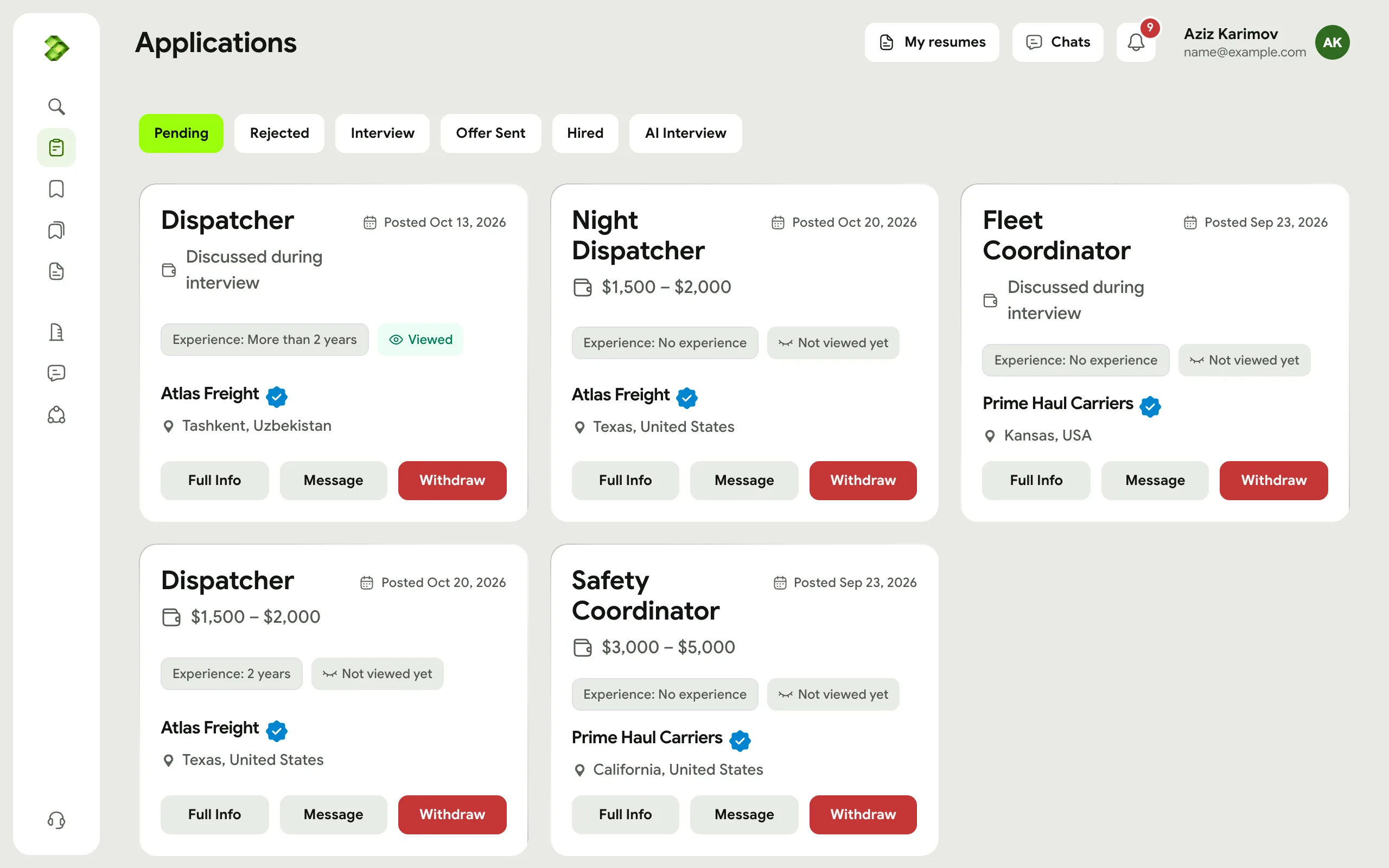
Applications lists every job you applied to, grouped by status. The employer moves it from step to step:
- PendingSent and waiting for the employer. You can withdraw it only at this step.
- AI InterviewThe employer invited you to an AI interview.
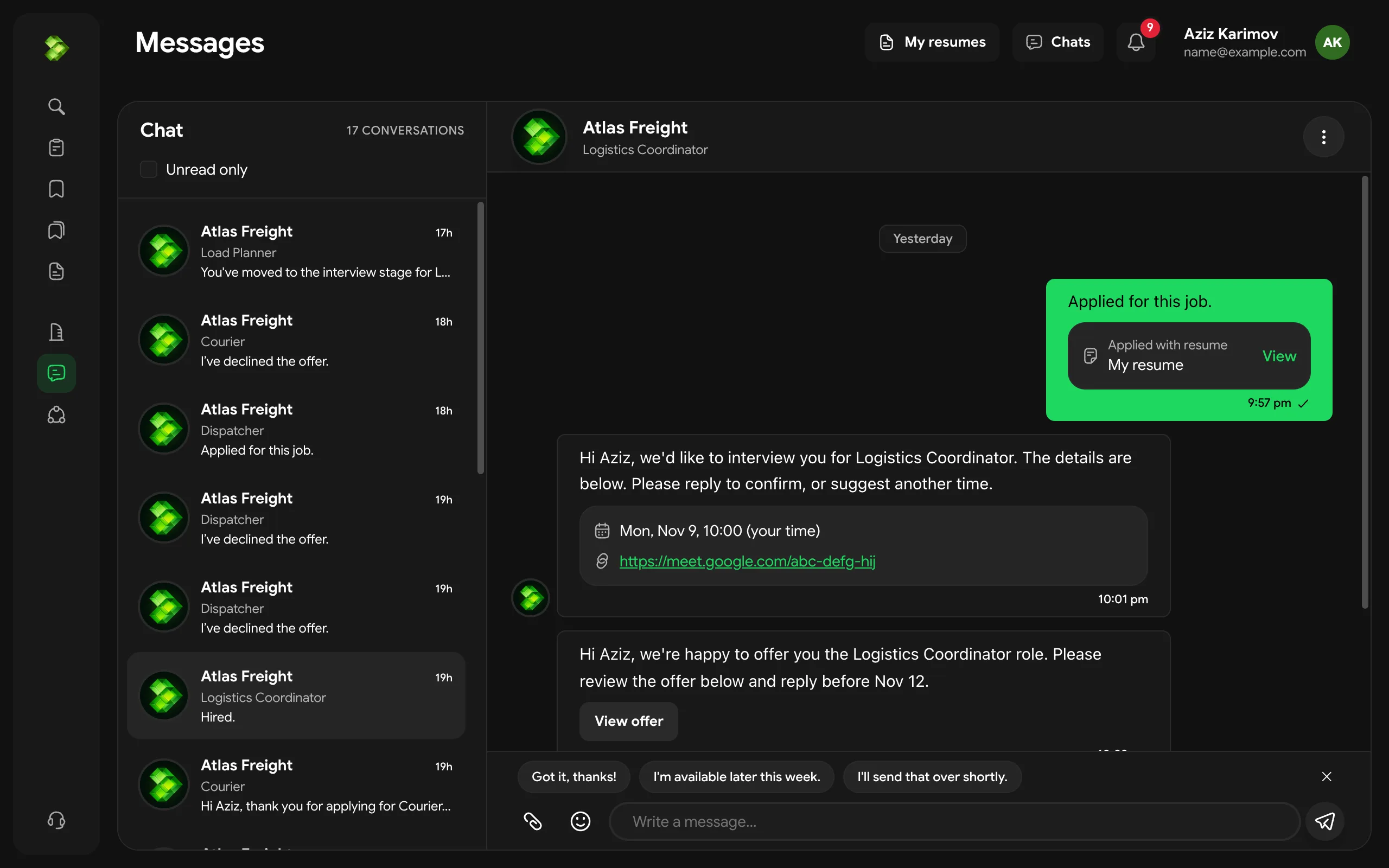
- InterviewThe employer sends the date, time and place or link in Messages. Reply there to confirm.
- Offer SentYou have a job offer to accept or decline.
- HiredYou got the job.
- RejectedThe employer declined this application.
In the menu: Applications
 Enlarge
Do the interview
For an AI interview you get a link in a notification and in Messages. You record your answers by voice or video, and the employer reviews them.
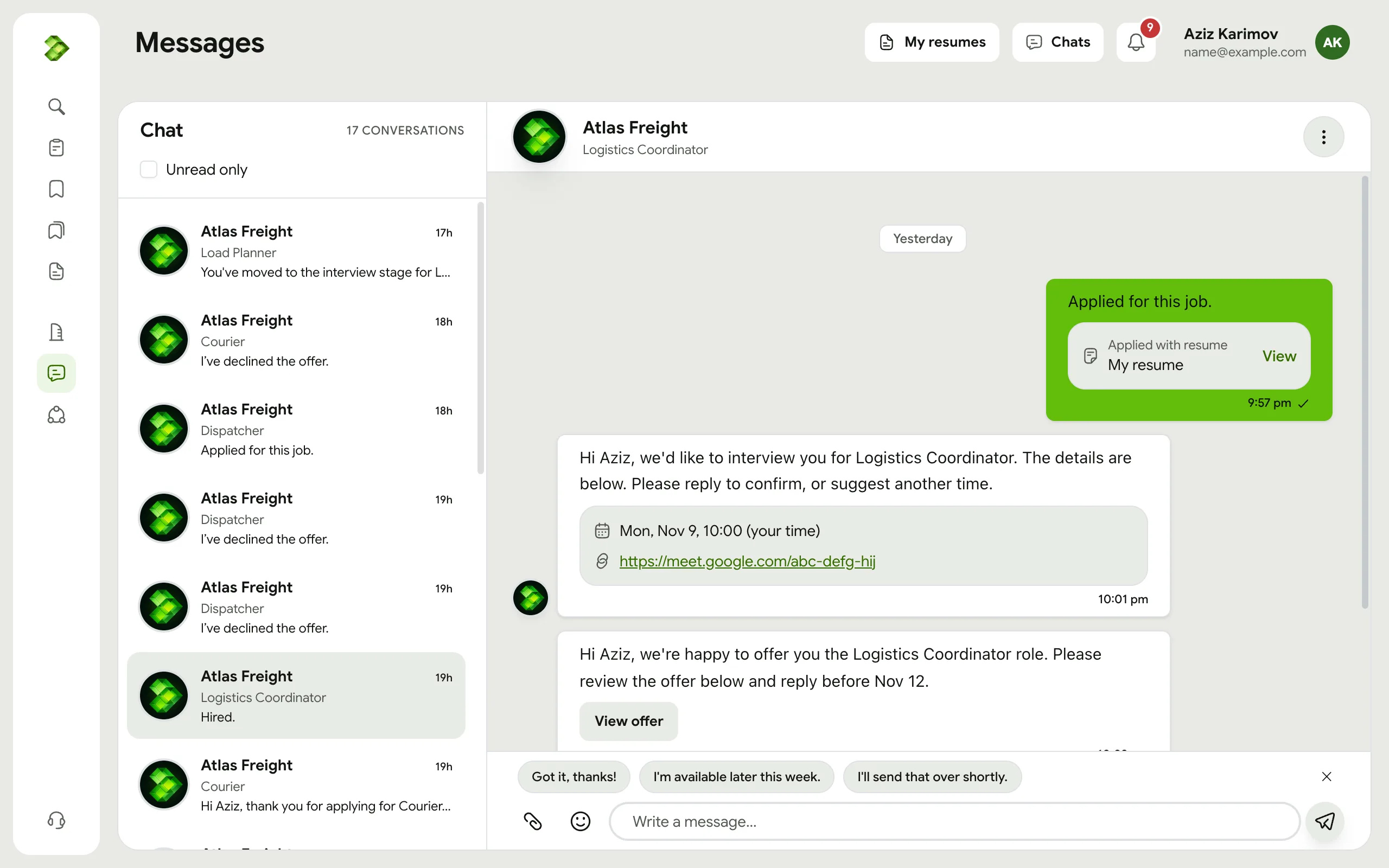
For an interview with the employer, they send the date, time and place or link in Messages. Reply there to confirm.
In the menu: Messages
 Enlarge
Accept the offer
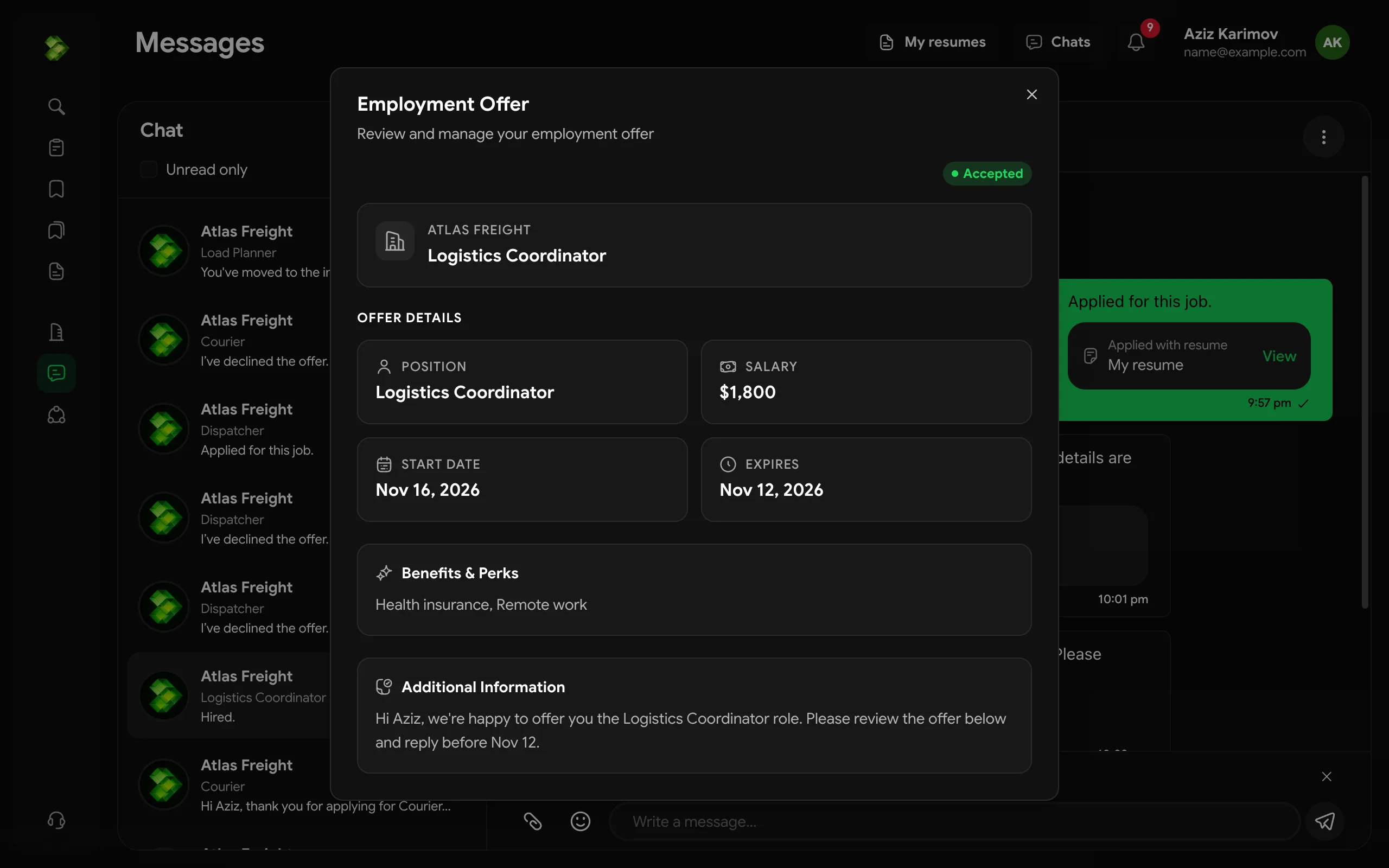
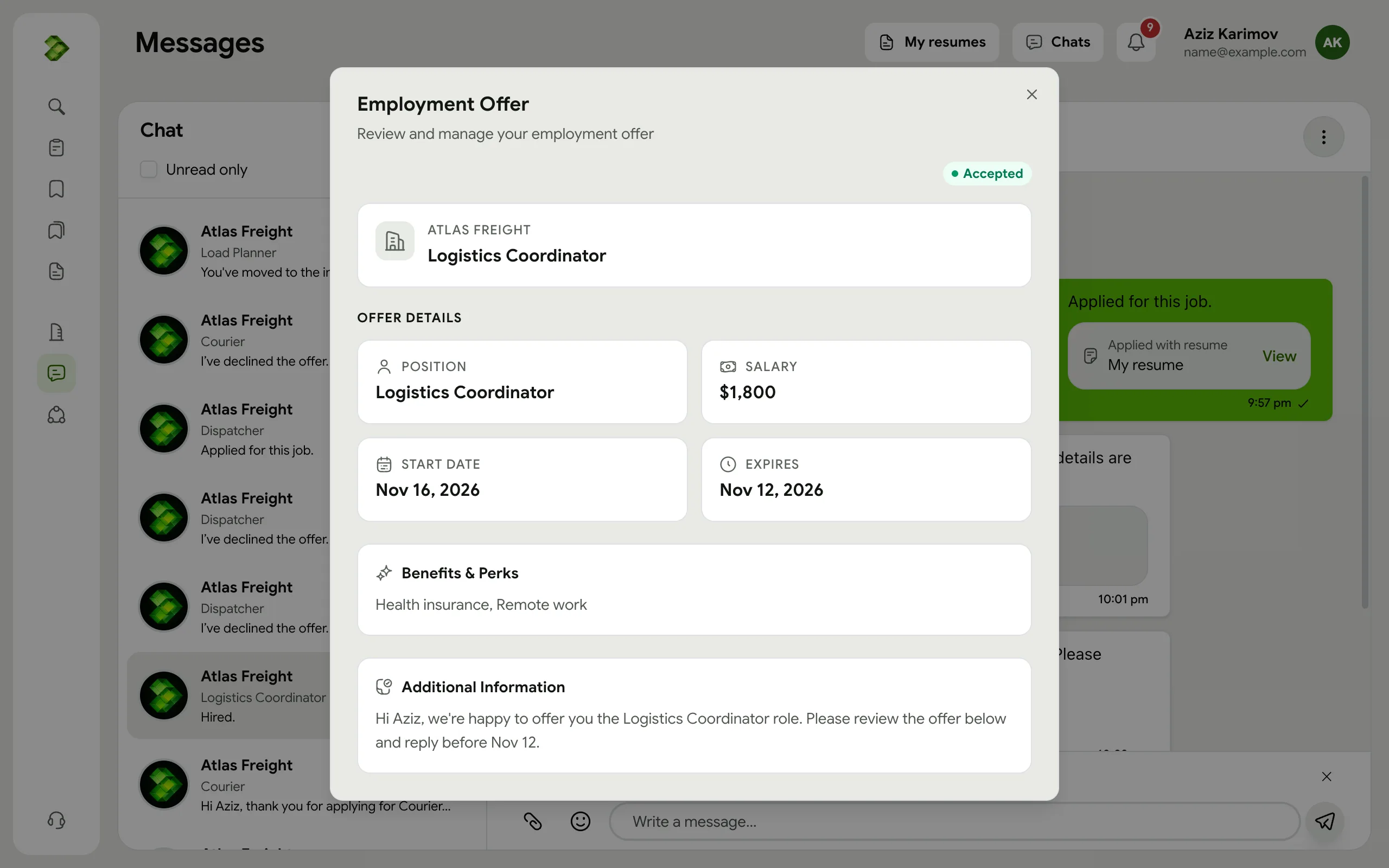
When an employer sends an offer, press Review offer on the application, in the chat or in the notification. Check the salary, start date and other details, then press Accept offer or Decline.
The employer is told at once. A decline can't be undone.
In the menu: Applications
 Enlarge
Keep in touch
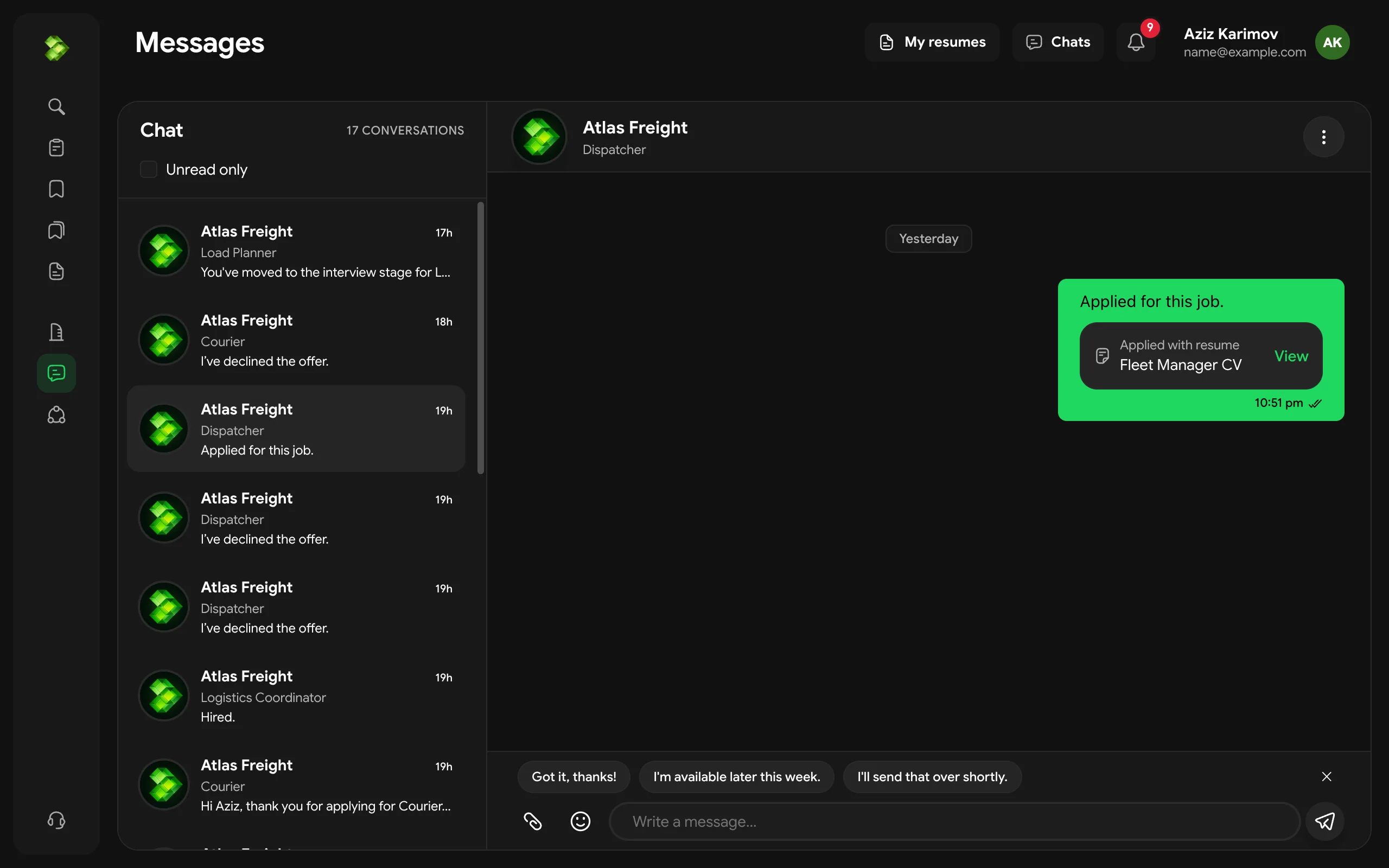
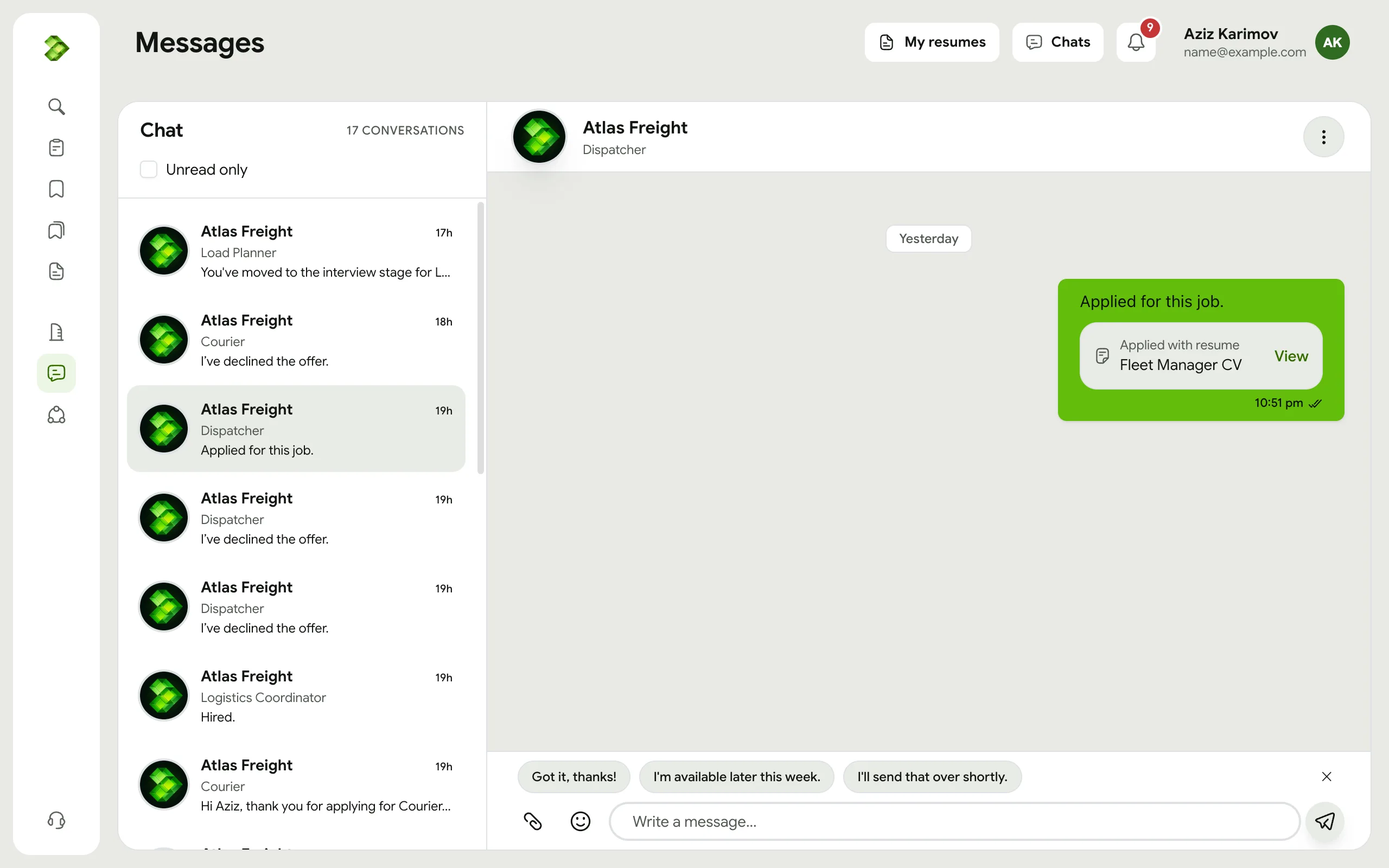
Messages holds every conversation with employers. At the Interview and Hired steps, Contact HR on the application also shows the company phone, email or Telegram when the job lists them.
In the menu: Messages
 Enlarge
Ready to start?
Browse open jobs now. You can start a resume before you sign up.
Still have questions?
Read the FAQ or write to us.