
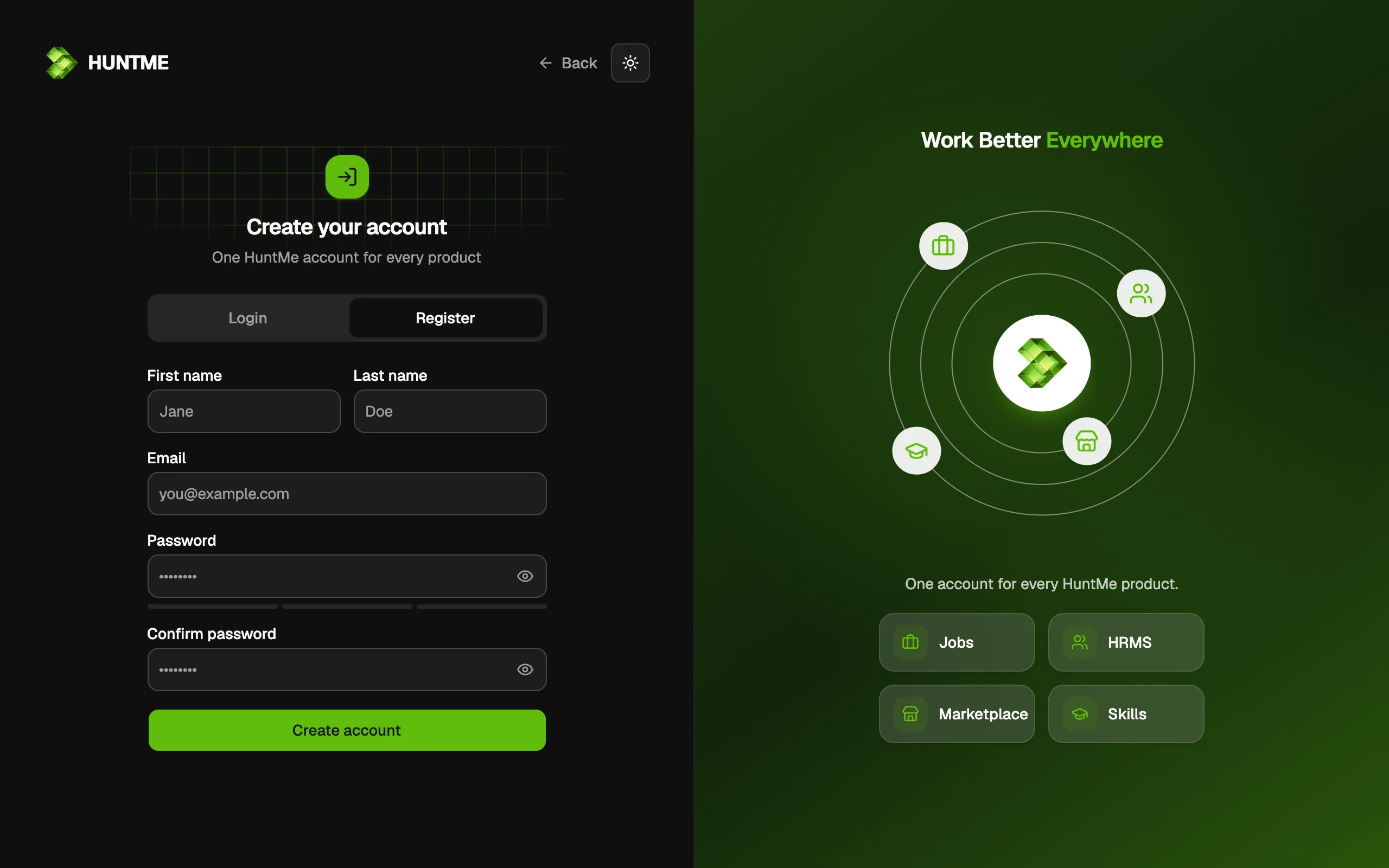
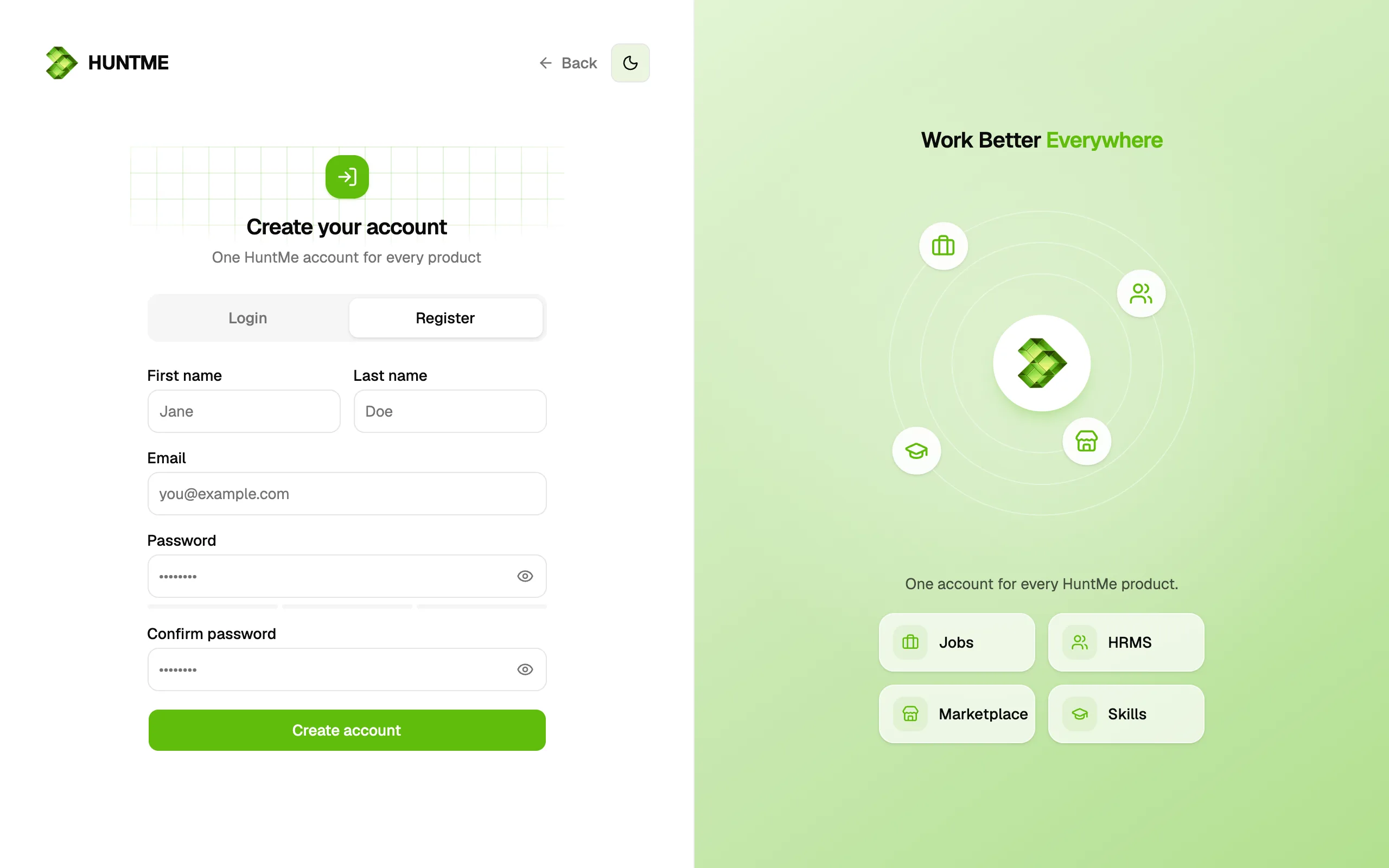
Create your account
Press Log in at the top of any page, then Sign up. You create the account on the HUNTME sign-in page and come back here when it is done.
 Enlarge
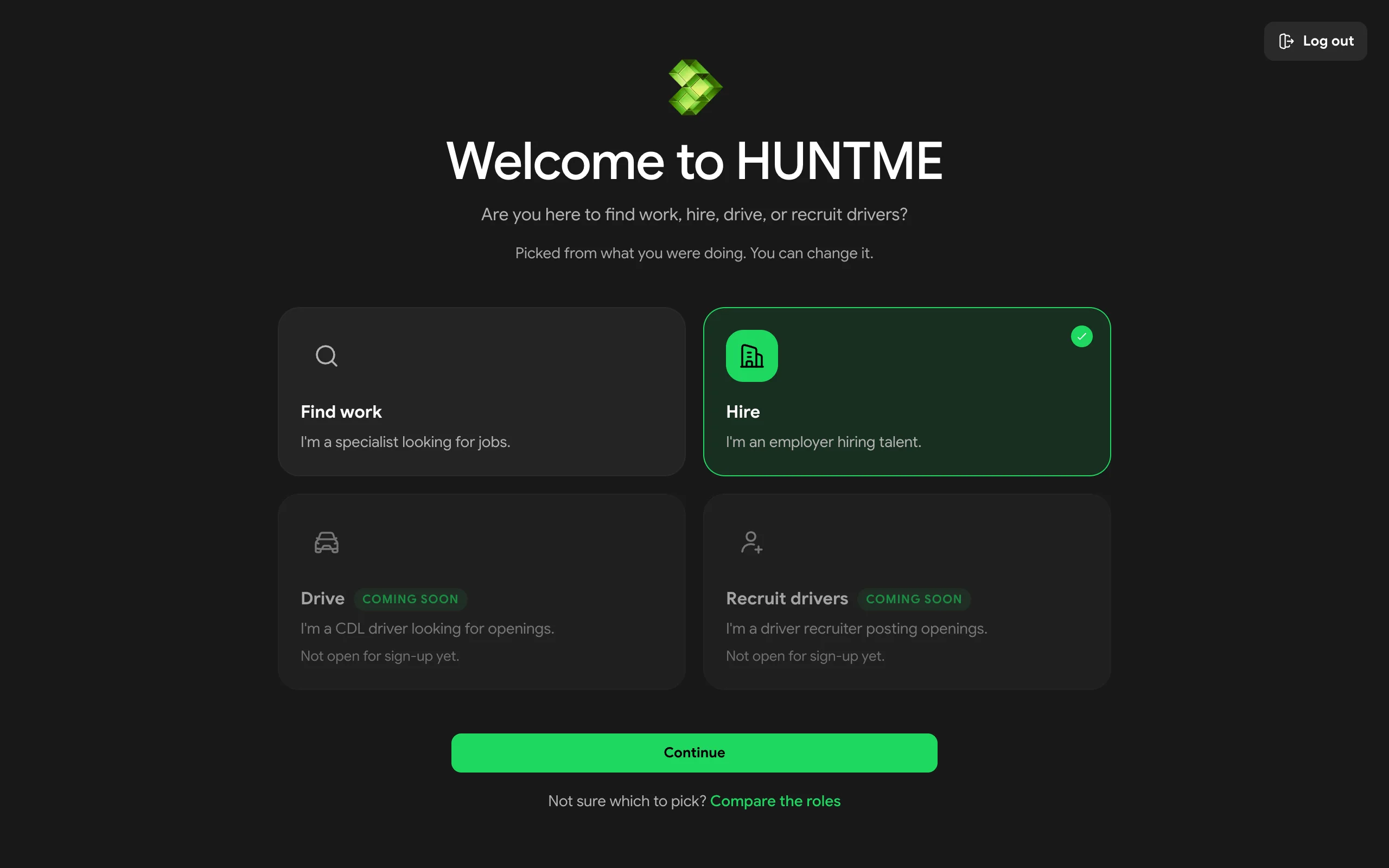
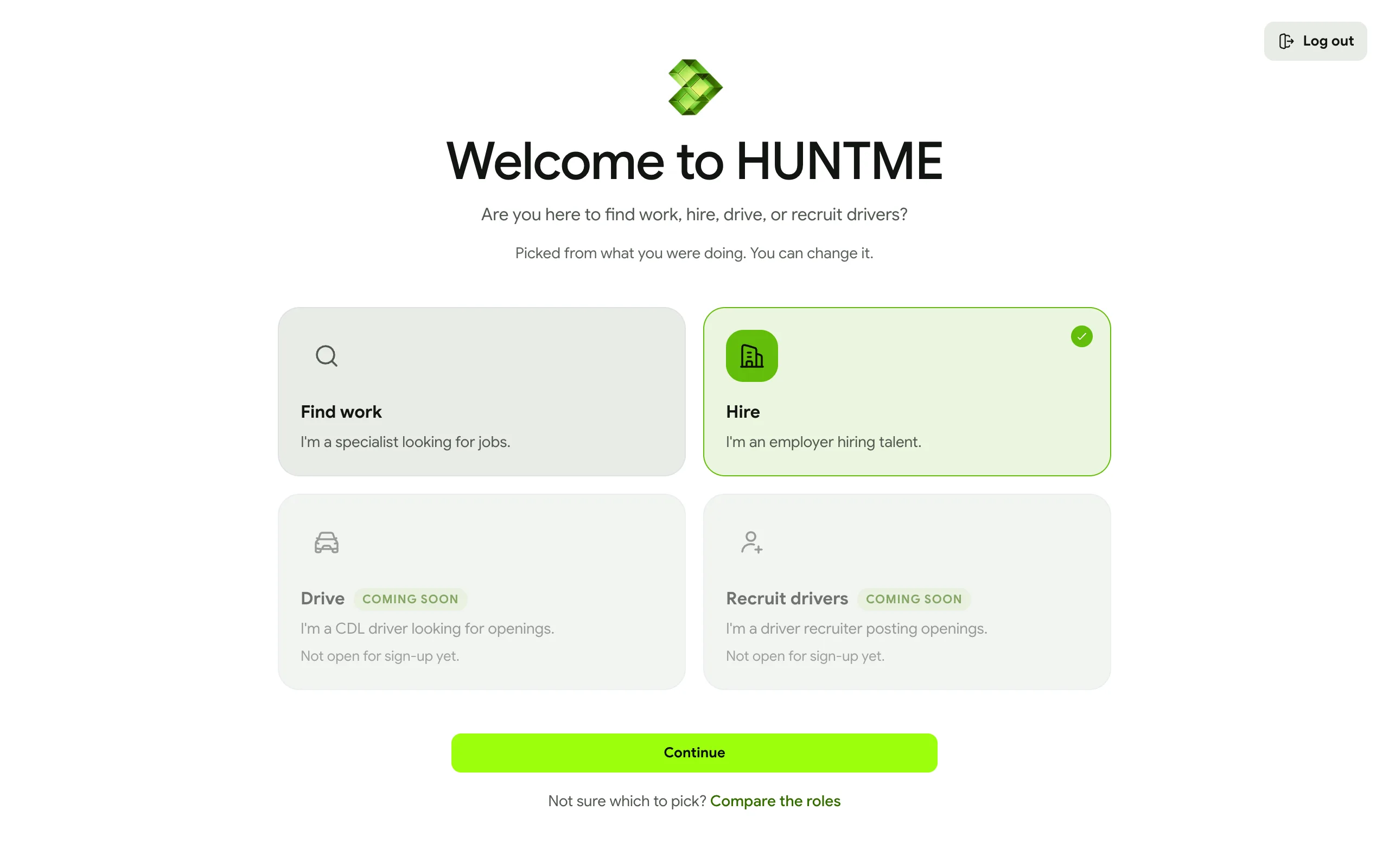
Choose Hire
HUNTME asks one question the first time: what brings you here. Pick Hire and press Continue. A short tour then shows you around.
Check your choice before you continue: you can't change it later. If you came from Post a job, Hire may already be picked.
 Enlarge
Add your company
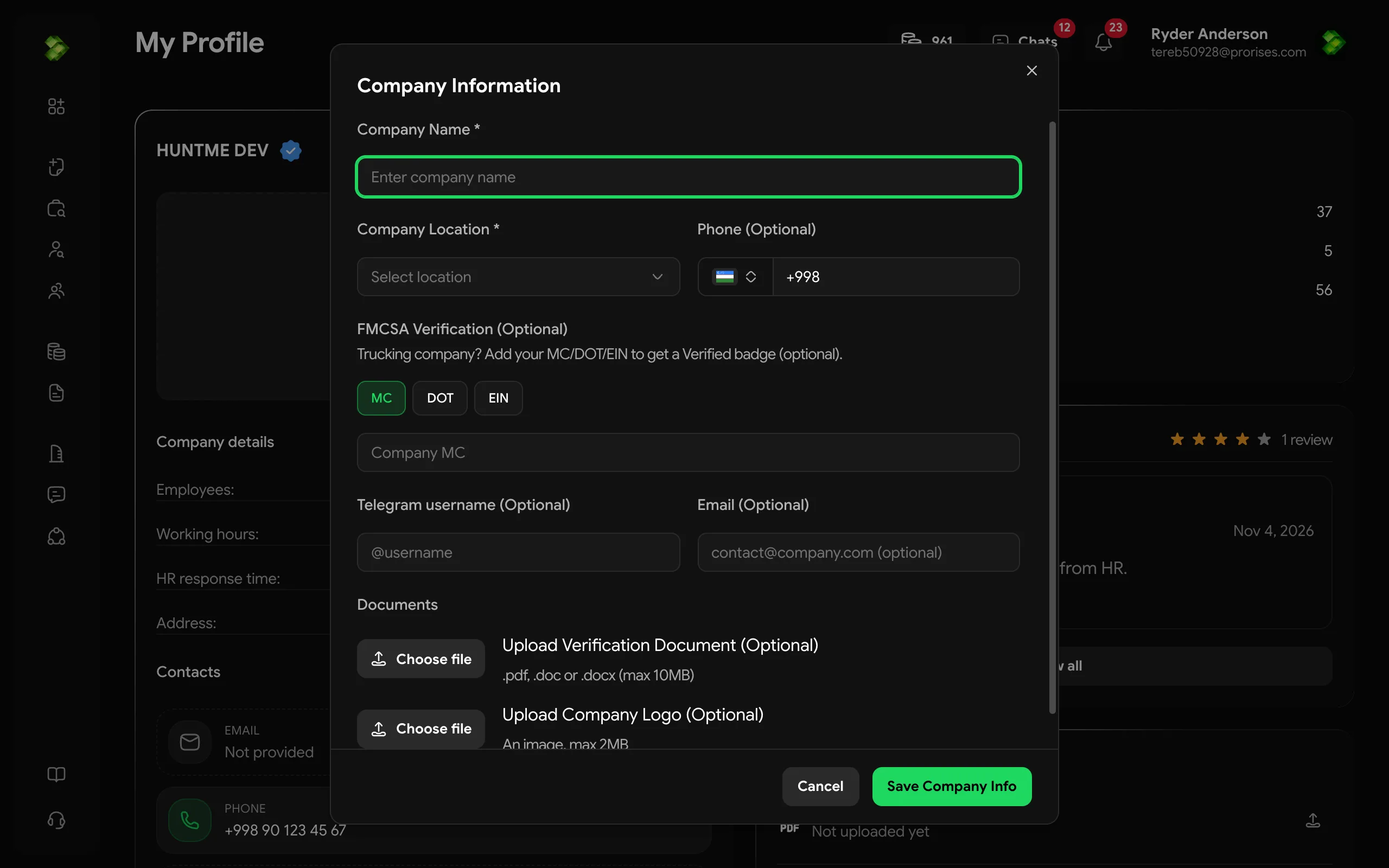
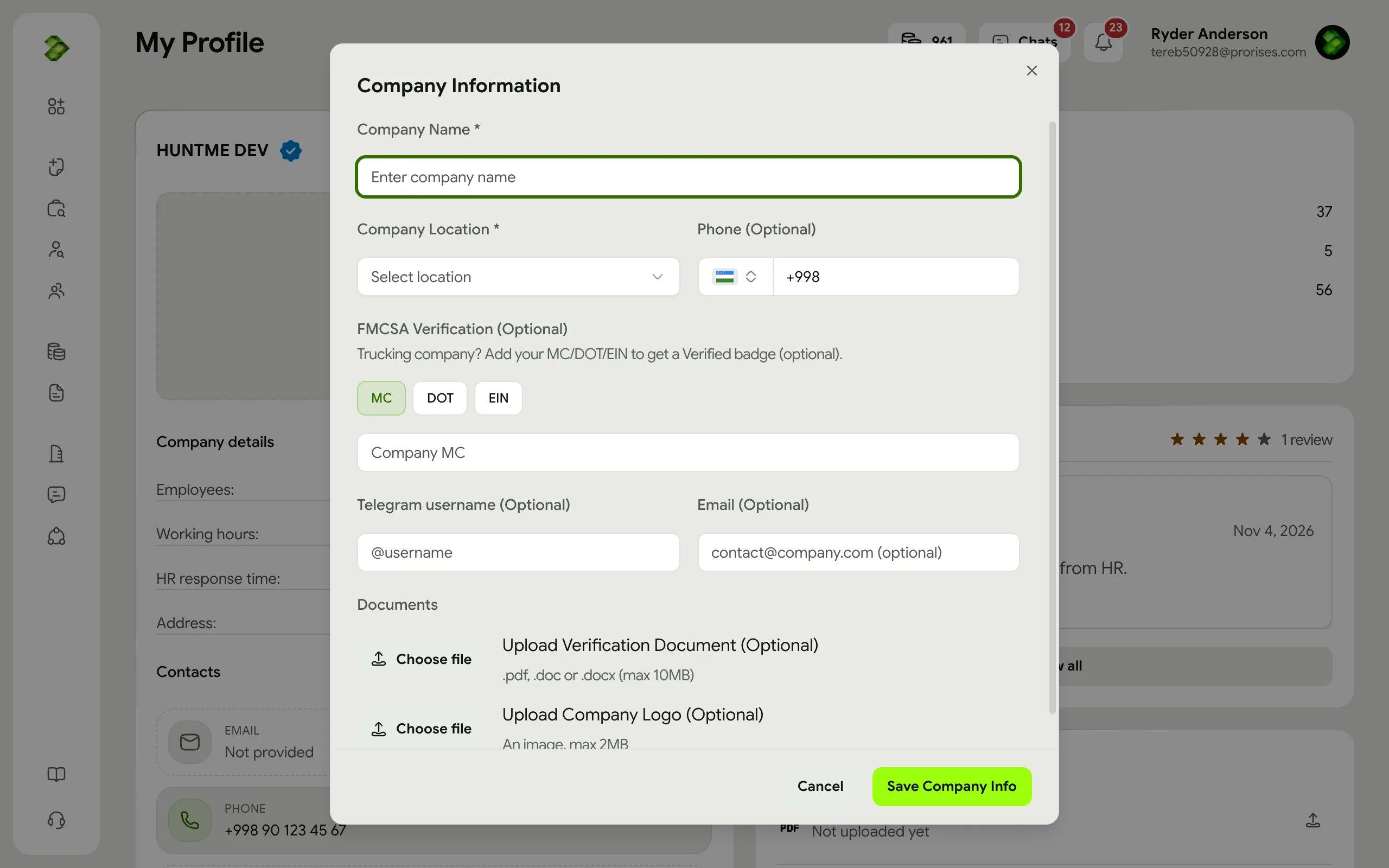
The first time you open your dashboard, the Your company form opens by itself. You can also open it from Profile in the account menu. Fill in the company name and location, and a phone number if you like. You can attach a business document now or add it later from your profile. Jobs are shown under your company name, so you need a company before you can post one.
Once the company is created you can post jobs right away. Pressing Post a Job first works too: it sends you to add the company, then back to the job form.
 Enlarge
Top up credits
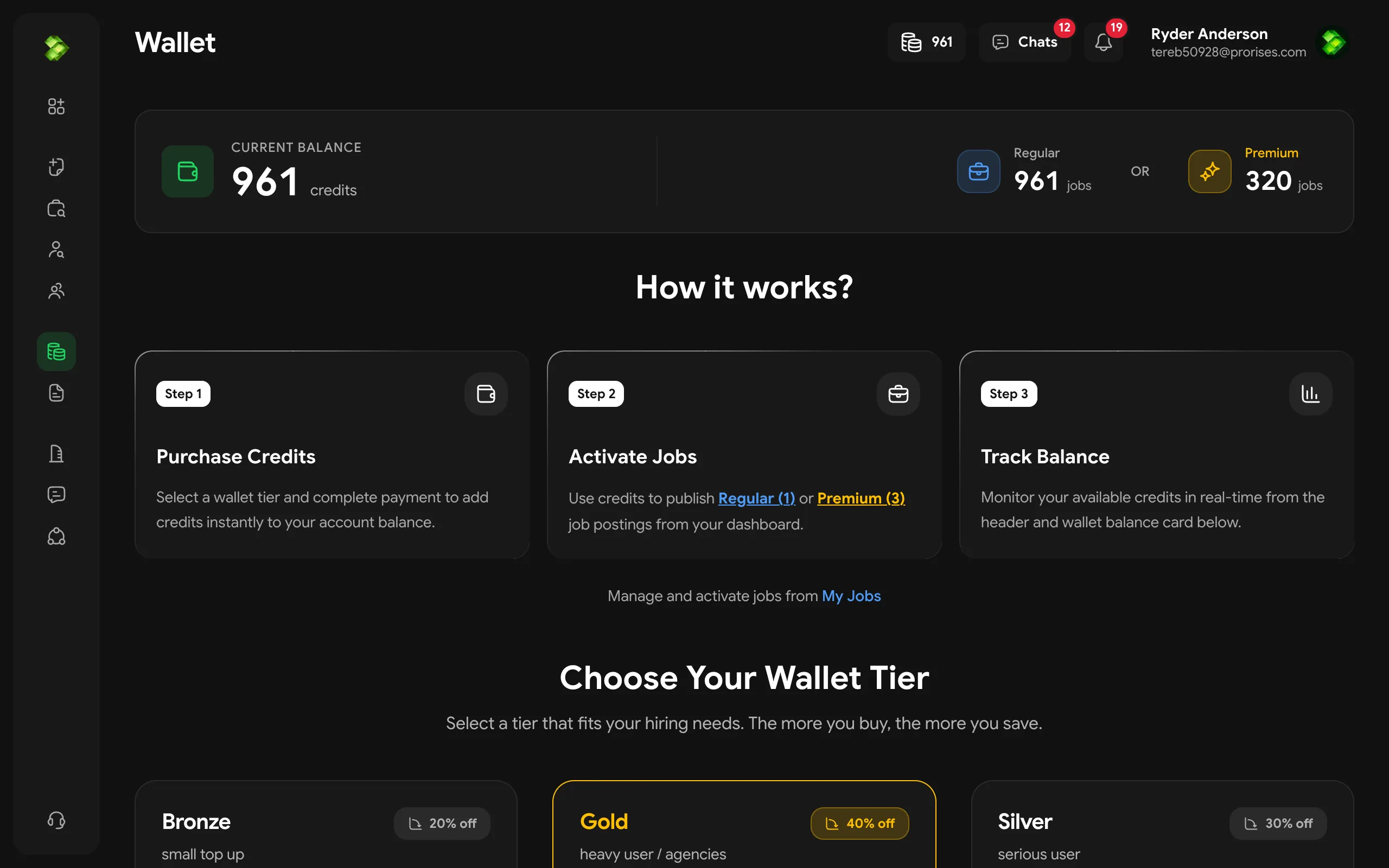
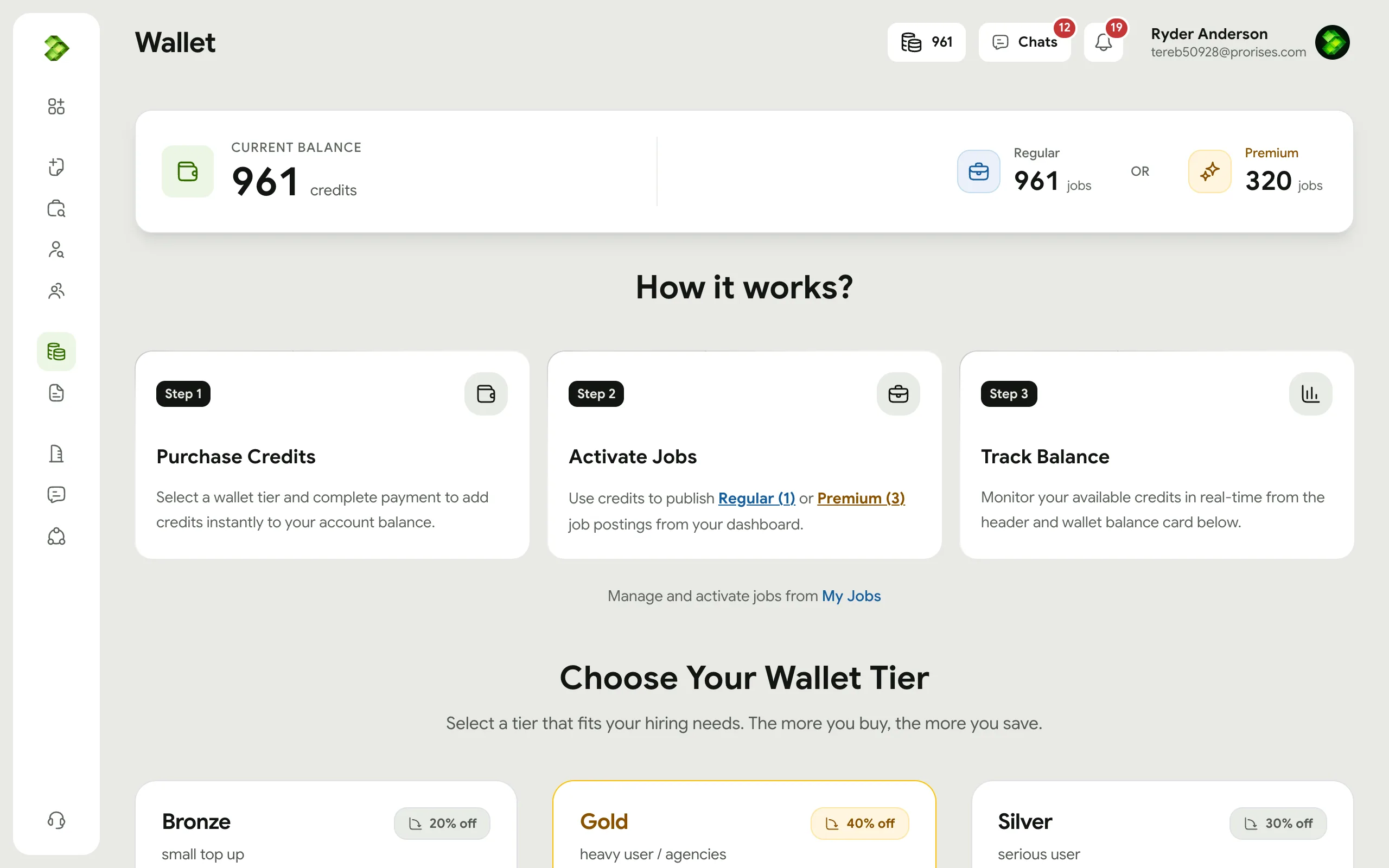
Credits pay for jobs, AI interviews and candidate unlocks. In Wallet, pick a credit pack and pay with Click, Stripe or Payme. Invoices keeps your credit history.
You can skip this and pay for a single job directly instead.
In the menu: Wallet, Invoices
 Enlarge
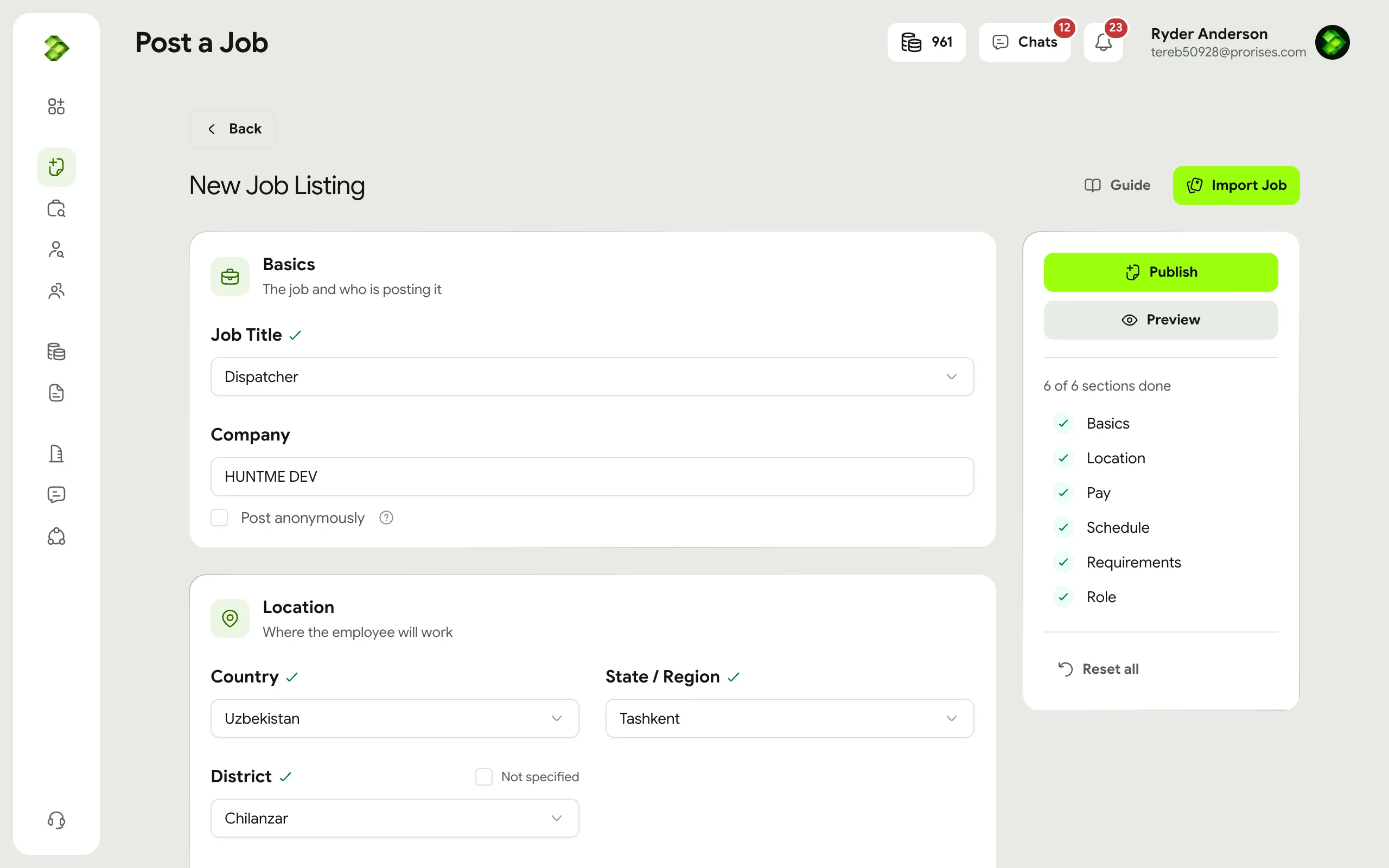
Fill in the job
Open Post a Job and choose Create from Scratch, or Use an Existing Job to start from one you posted before. Fill in each section: the position, location, pay, schedule, requirements and duties. The panel on the right ticks off each finished section.
Pick a plan: Regular costs 1 credit; Premium costs 3 credits, sits at the top of the listings for 30 days and lets you invite applicants to AI interviews.
In the menu: Post a Job
Read the posting rules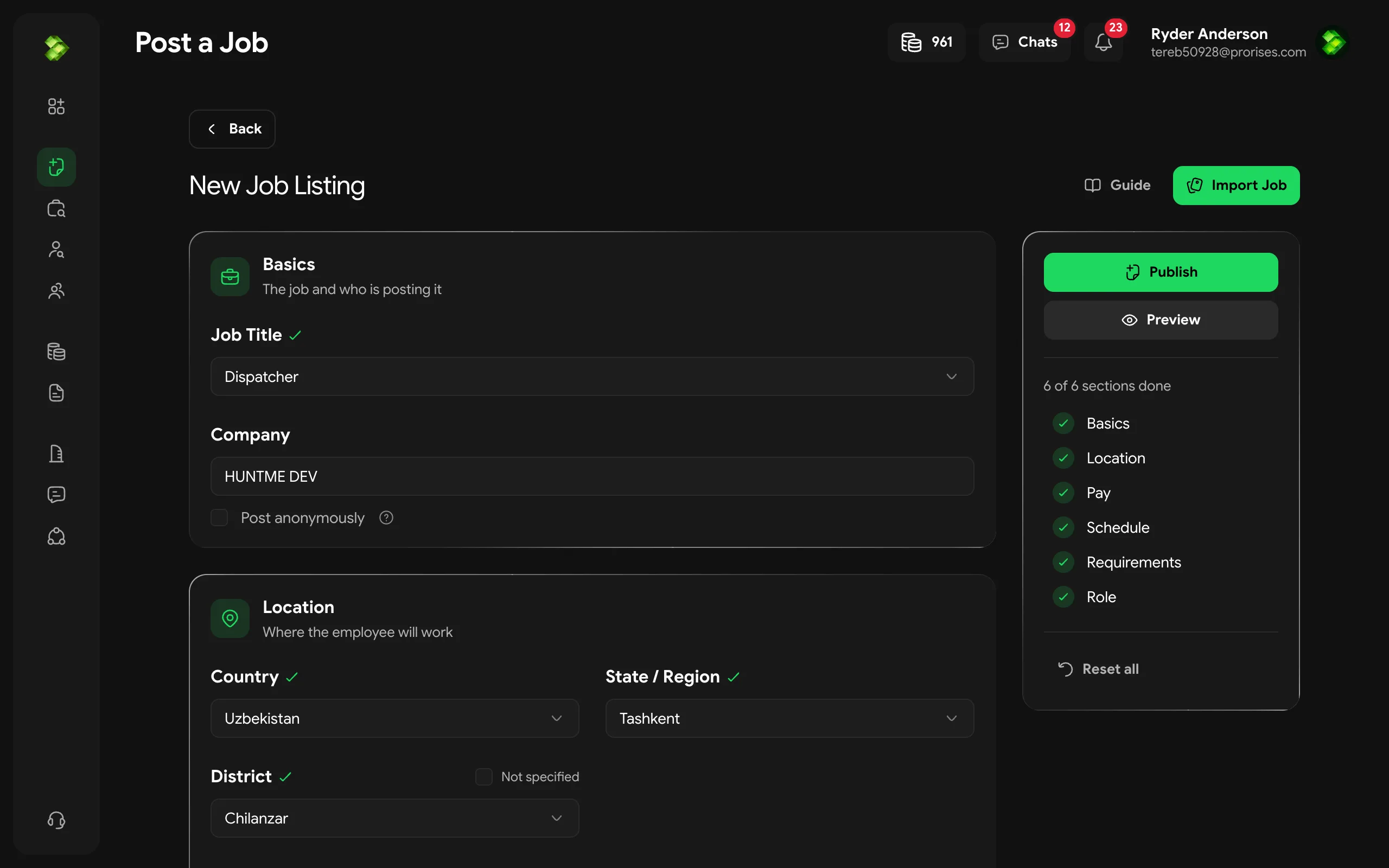 Enlarge
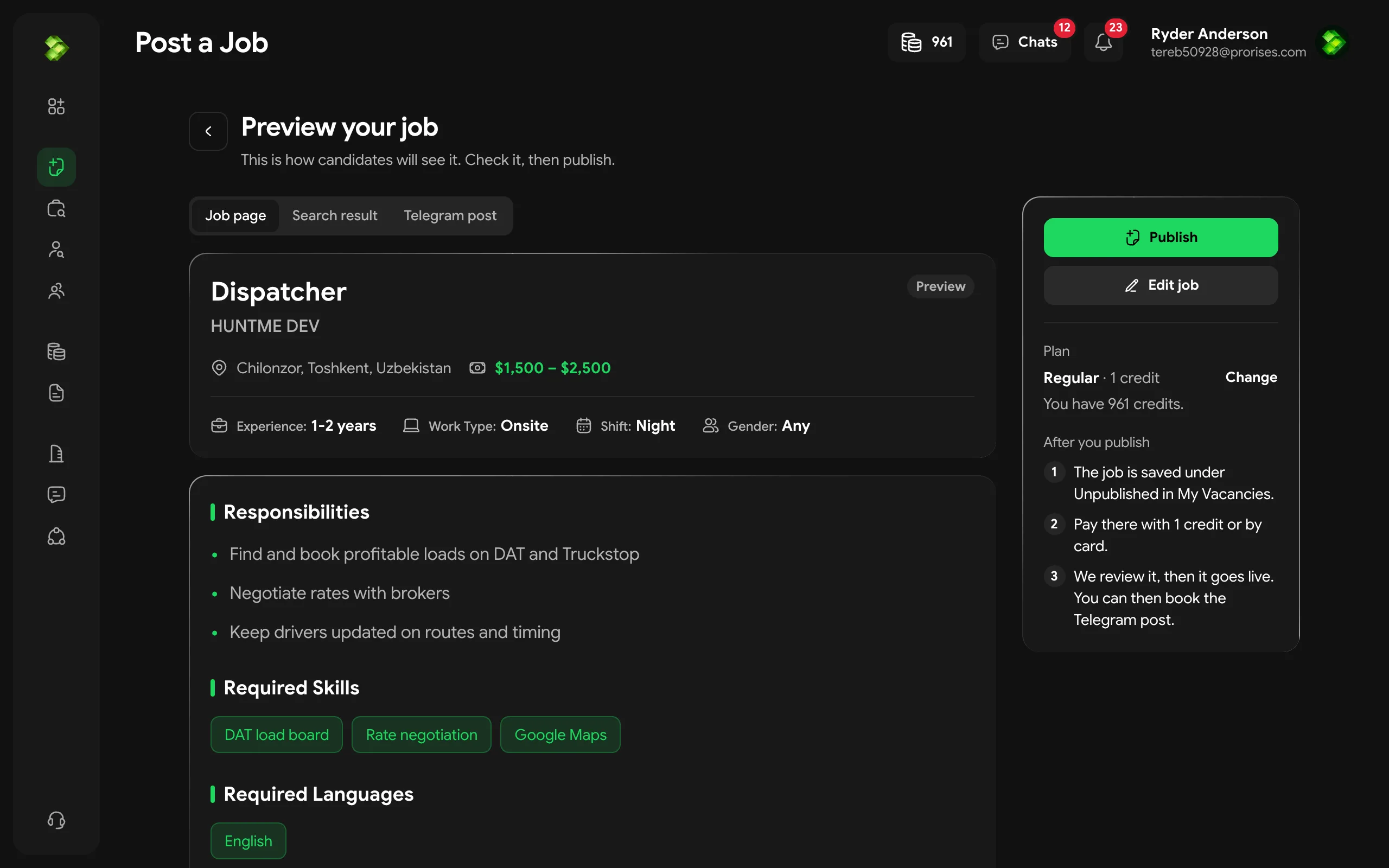
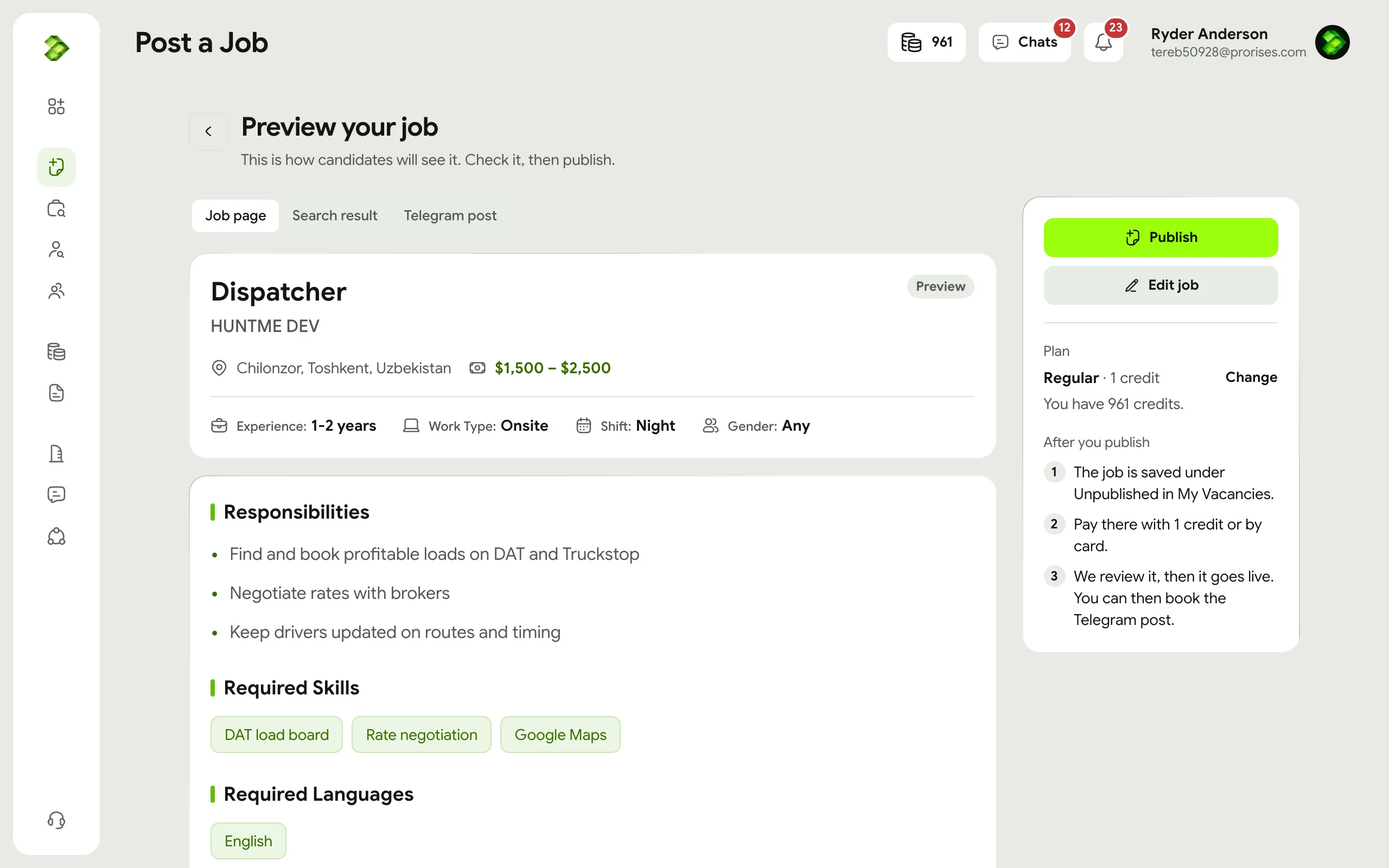
Preview and publish
Preview shows the job page candidates will read, the card in search results and the Telegram post. The panel shows your plan, what it costs and what happens next. Press Publish when it looks right. The job is saved as Unpublished until it is paid for.
In the menu: Post a Job
 Enlarge
Pay and wait for review
Pay for the job with credits, or with Click, Stripe or Payme. It then shows as Under review: we check every job against the posting rules, which usually takes a few minutes, and you are notified when it is Active.
In the menu: My Vacancies
 Enlarge
Post it in Telegram
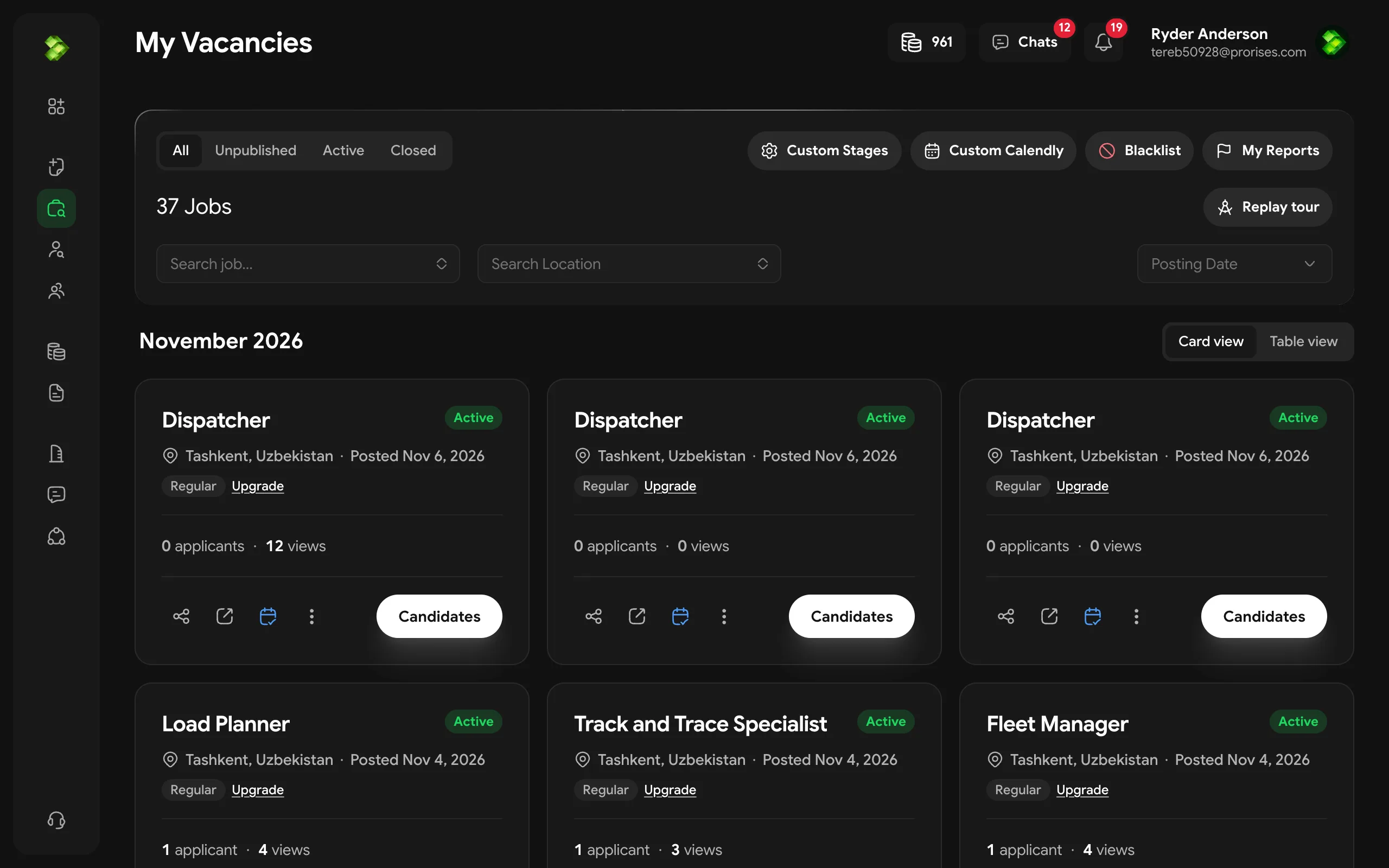
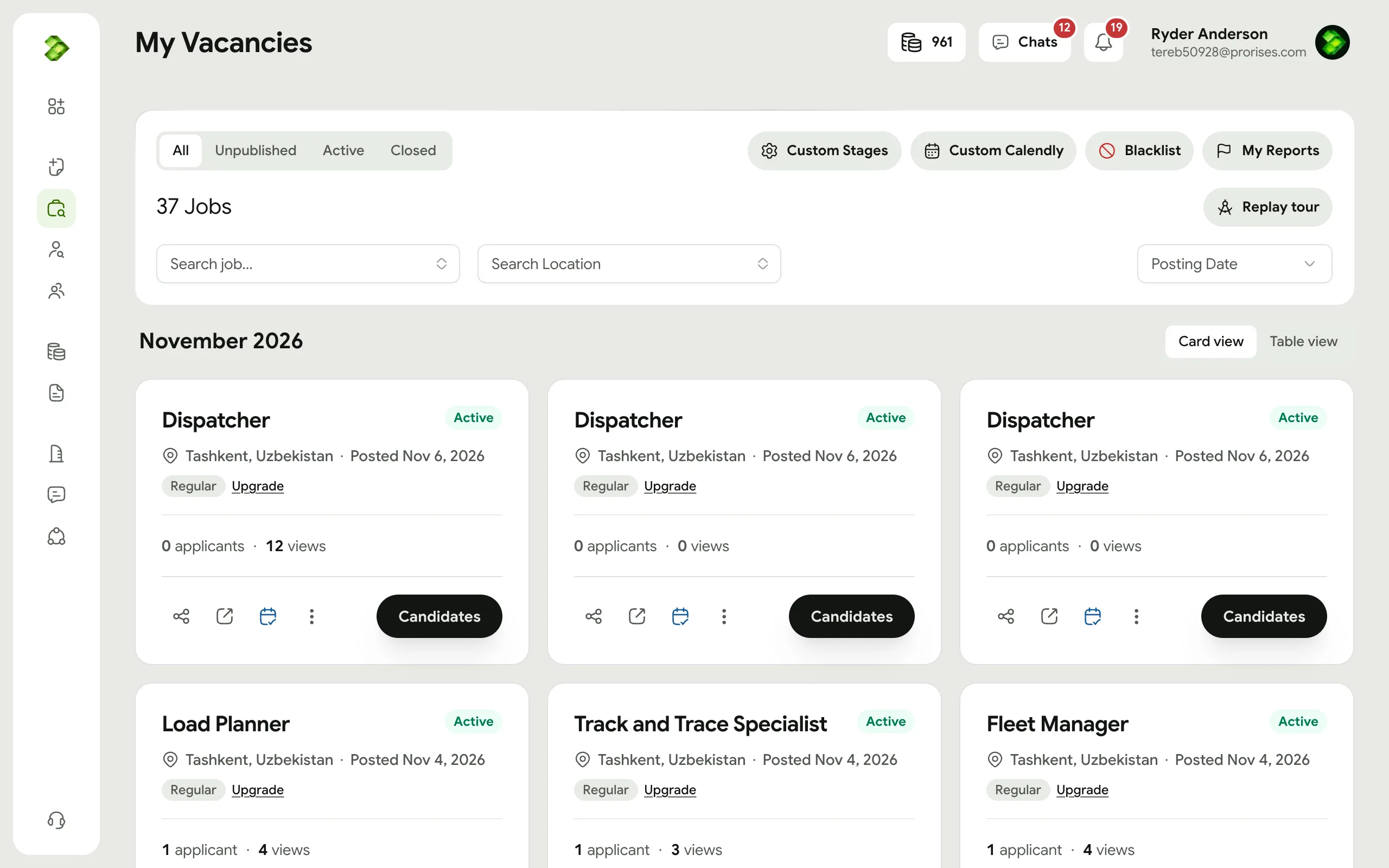
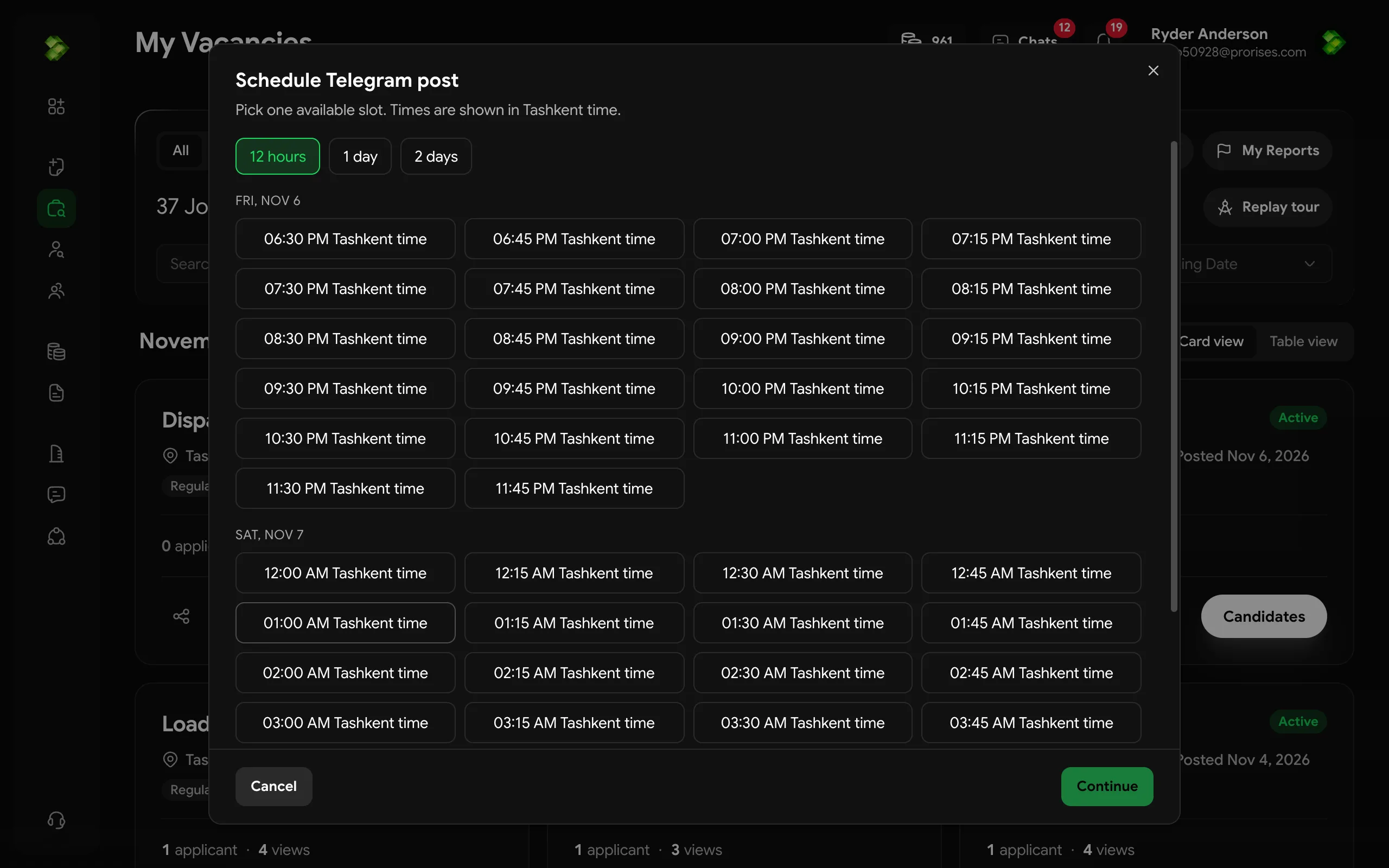
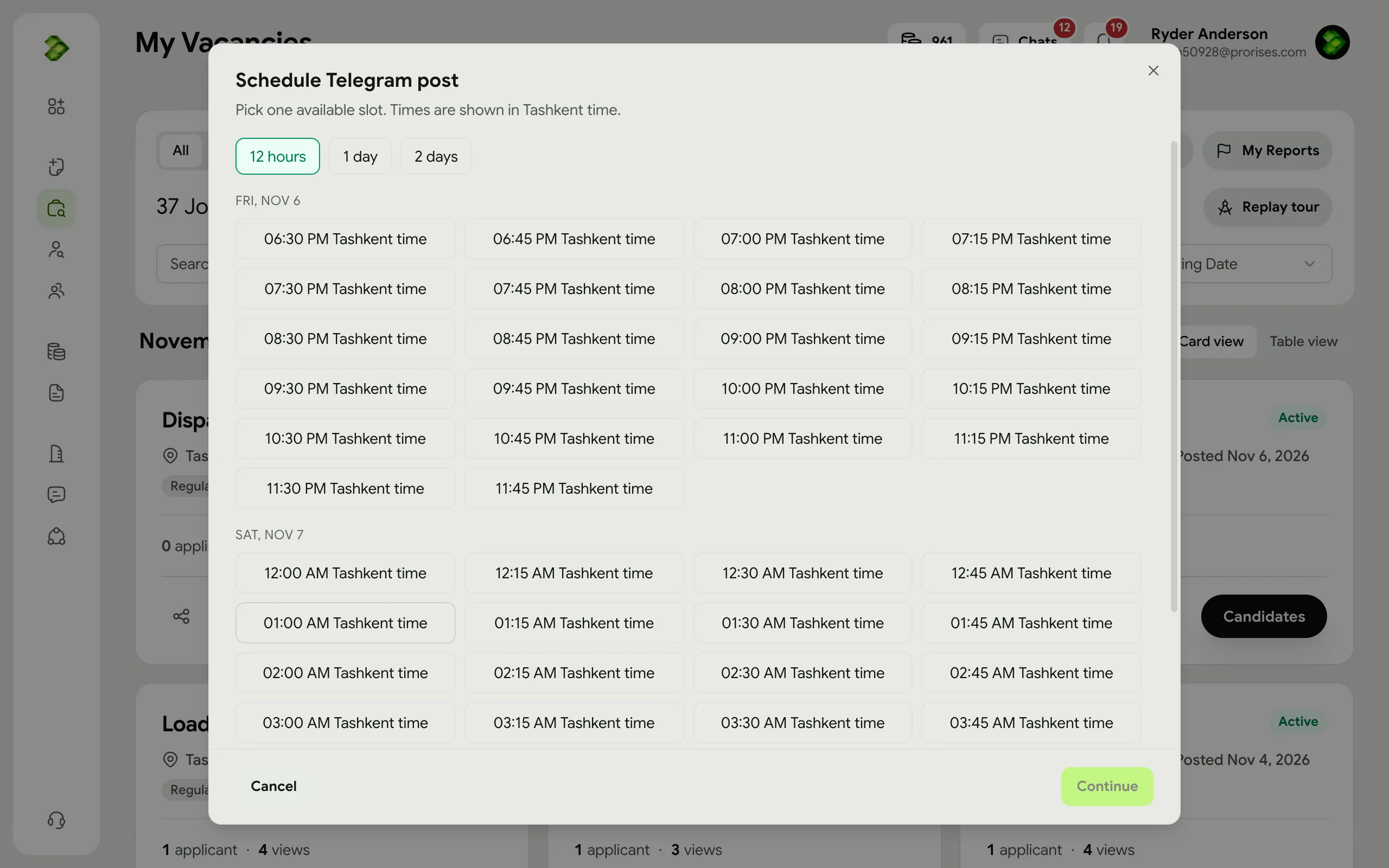
Once the job is Active, press Schedule Telegram post on it and pick a time. It goes out on the HUNTME Telegram channel.
In the menu: My Vacancies
 Enlarge
Review applicants
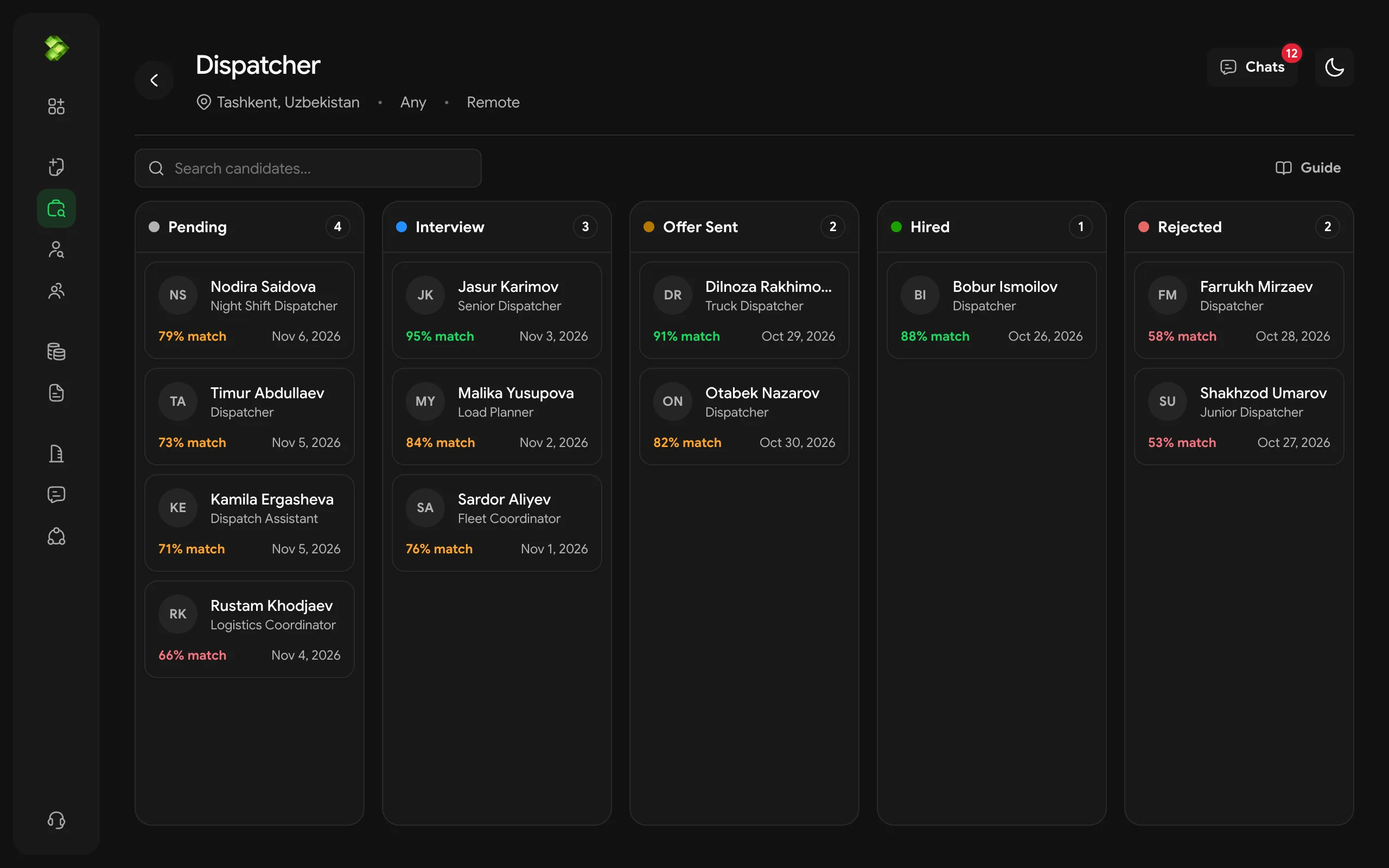
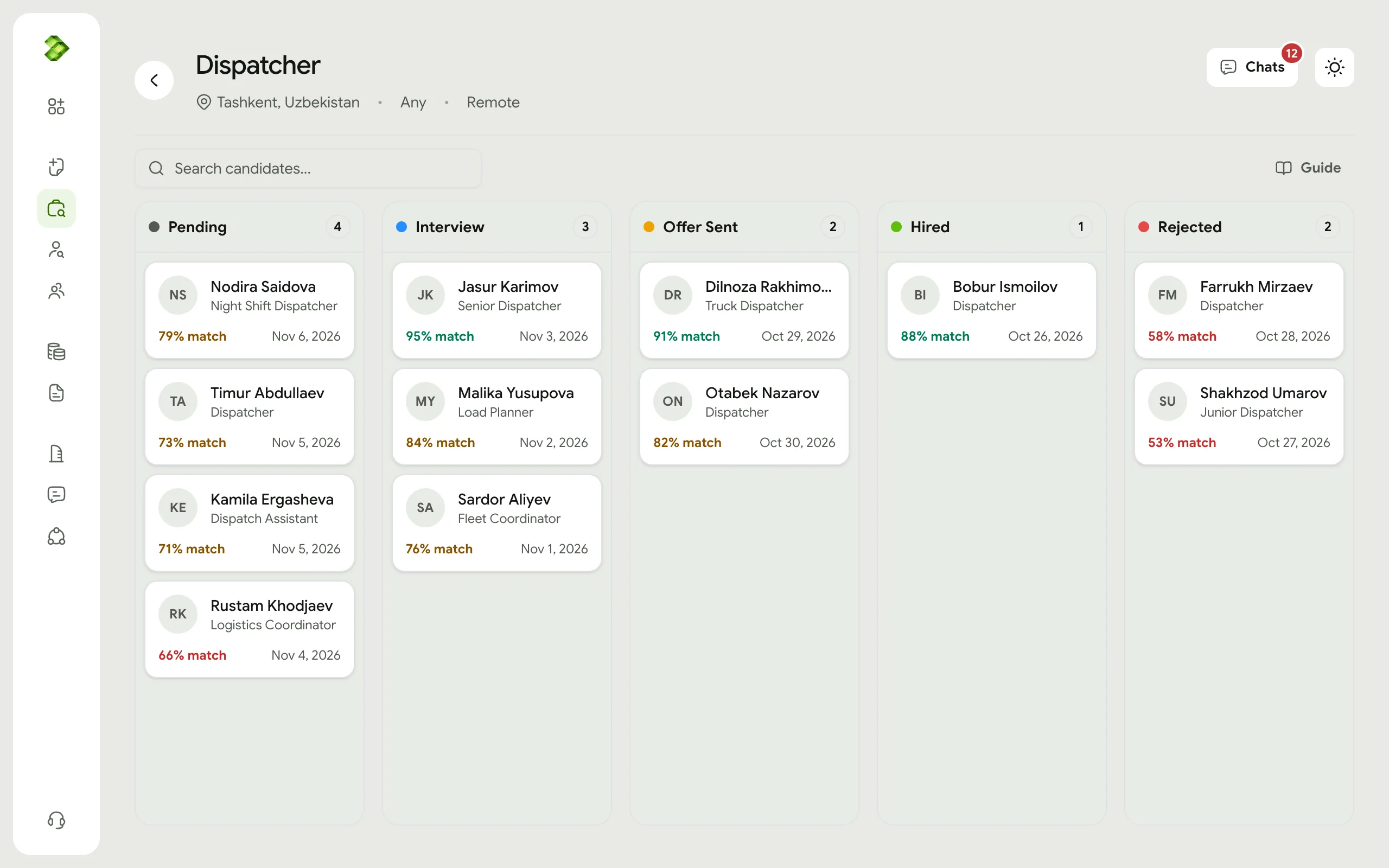
Open the job and press Applications. The board has a column for each step: Pending, AI Interview, Interview, Offer Sent, Hired and Rejected. Search finds people by name or position.
In the menu: My Vacancies
 Enlarge
Interview a candidate
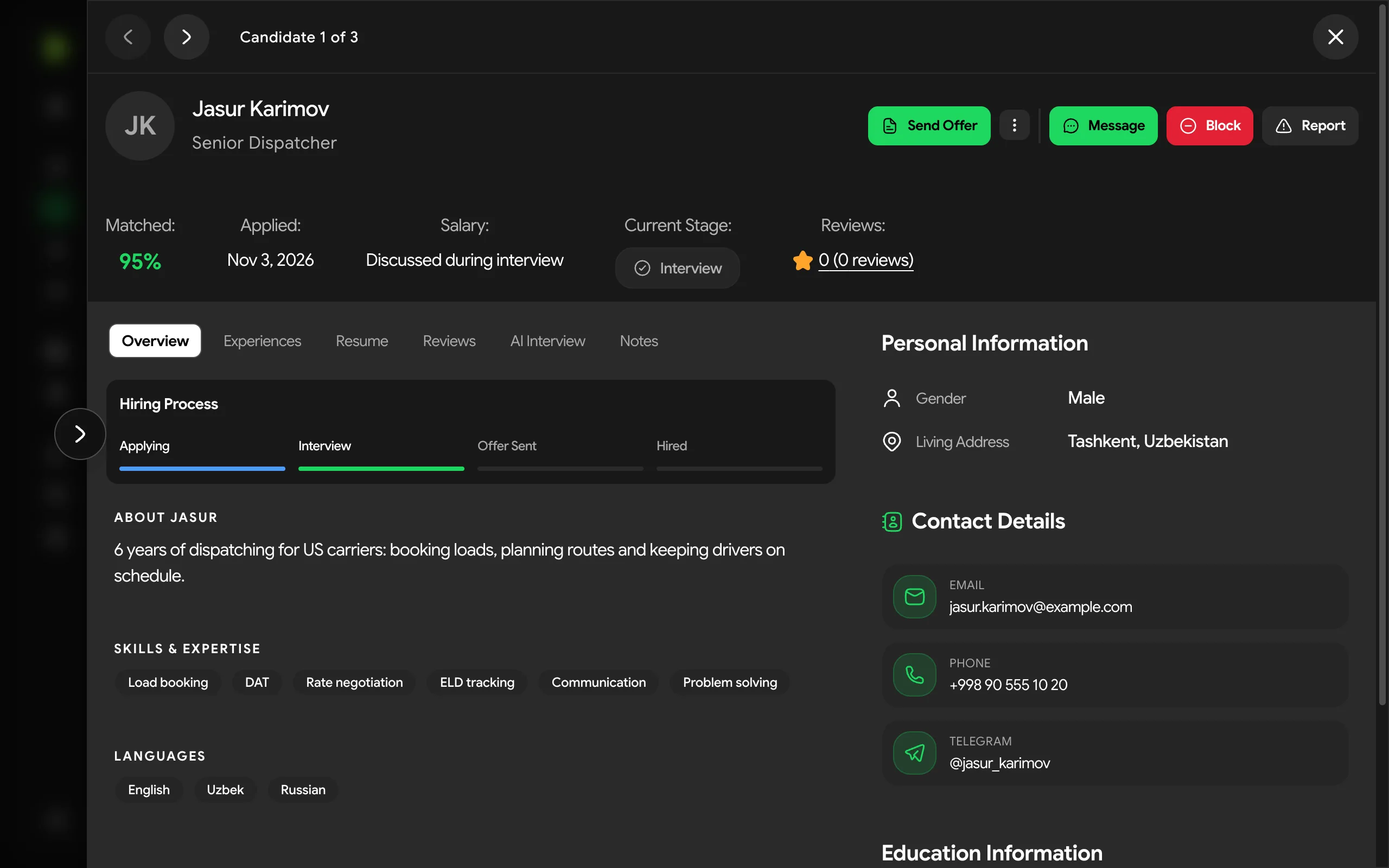
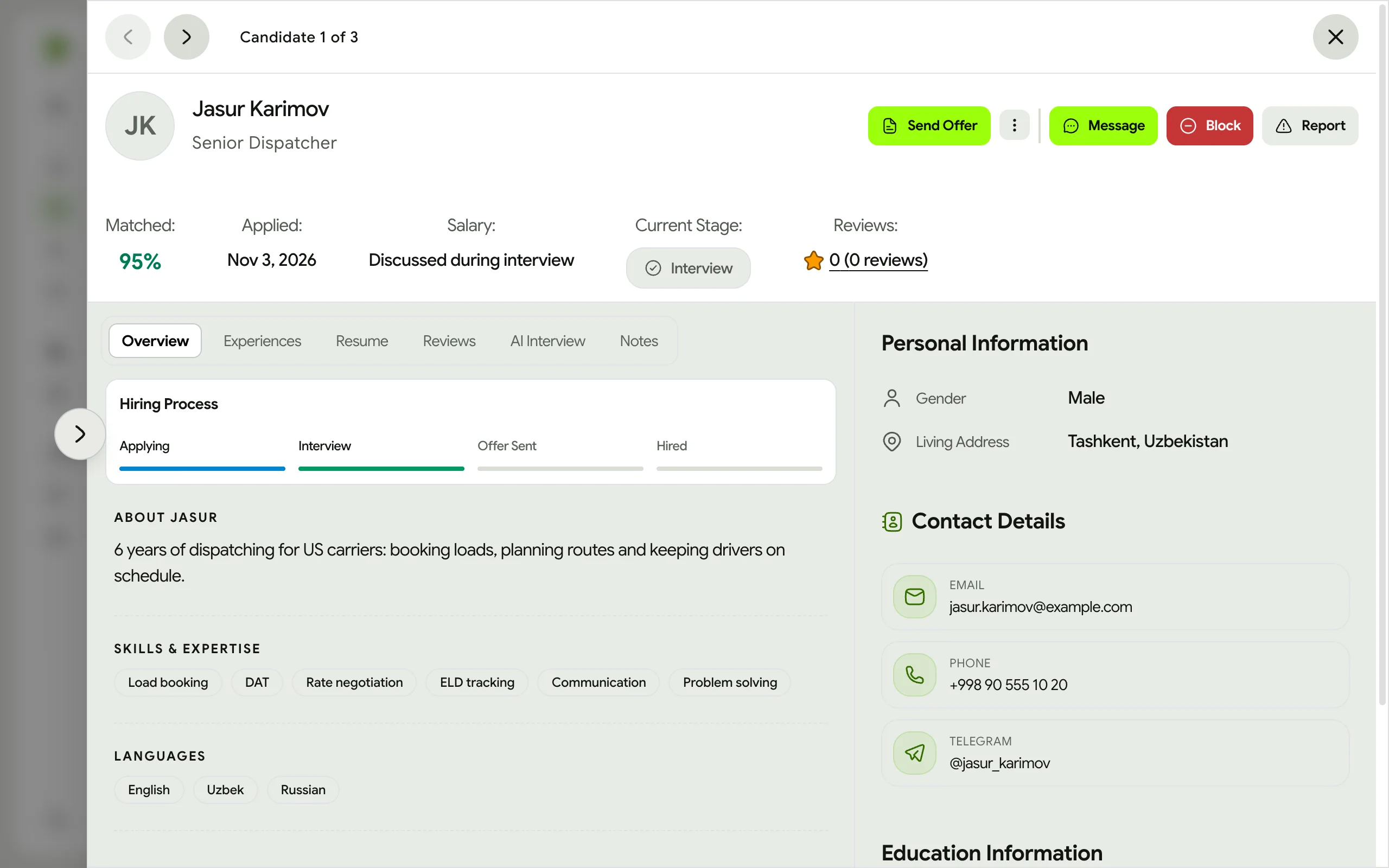
Open a candidate to see their resume and profile. From there you can invite them to an AI interview on a Premium job, invite them to an interview, message them or reject them. Dragging their card to another column does the same.
In the menu: My Vacancies, Messages
 Enlarge
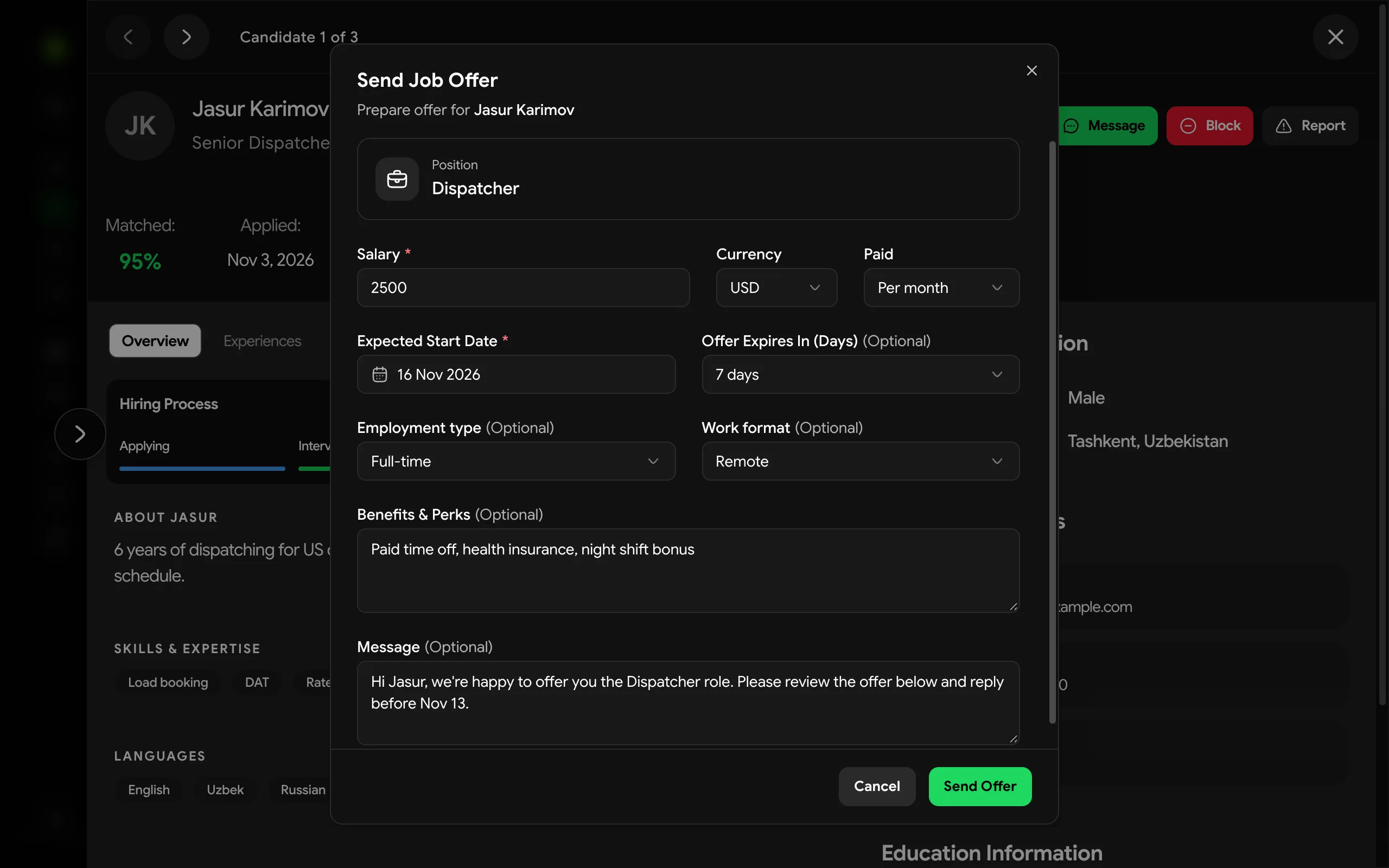
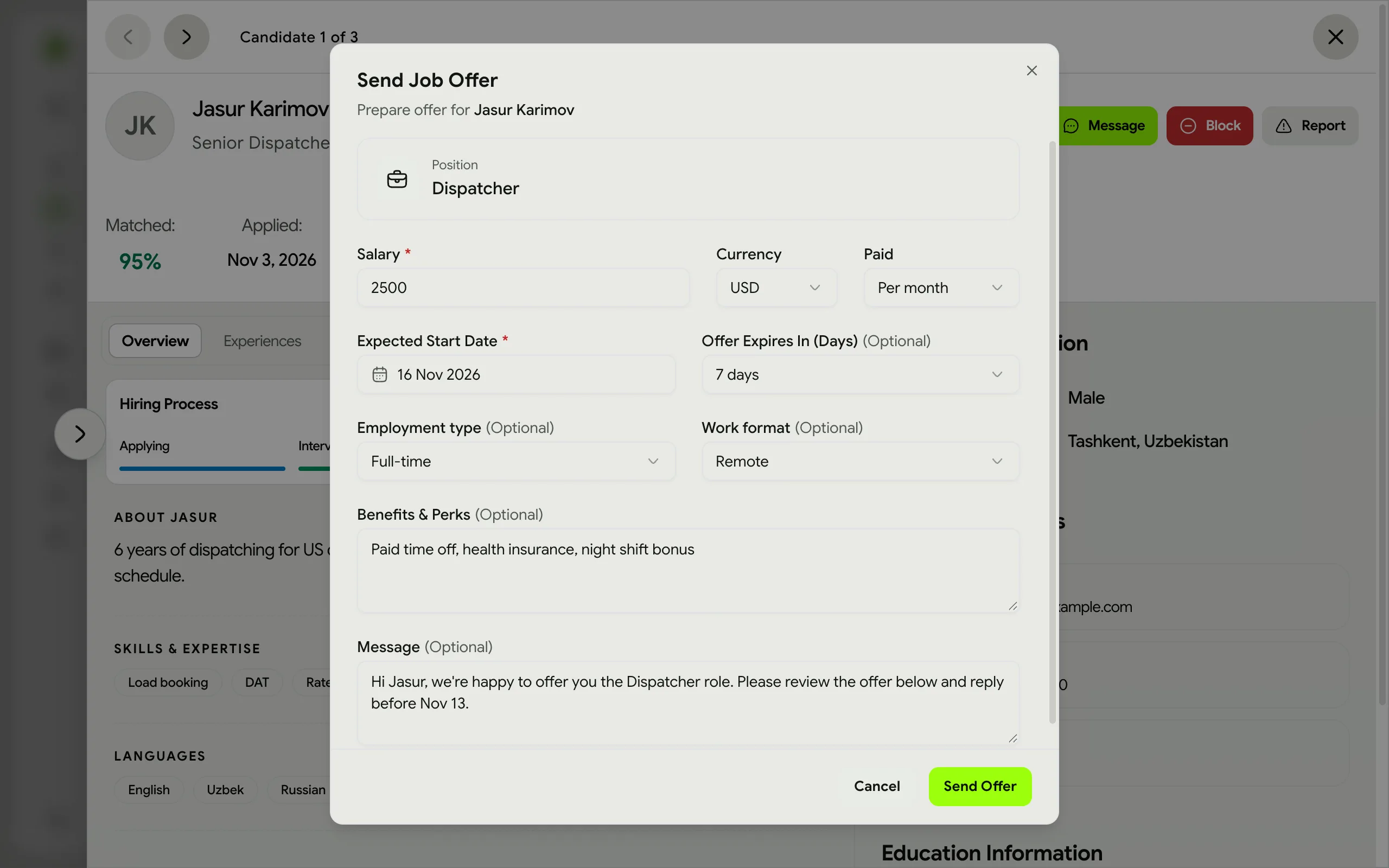
Send an offer and hire
Press Send Offer and fill in the salary, start date, how long the offer is open and any notes. When the candidate accepts, they move to Hired and appear in Employees.
In the menu: Employees
 Enlarge
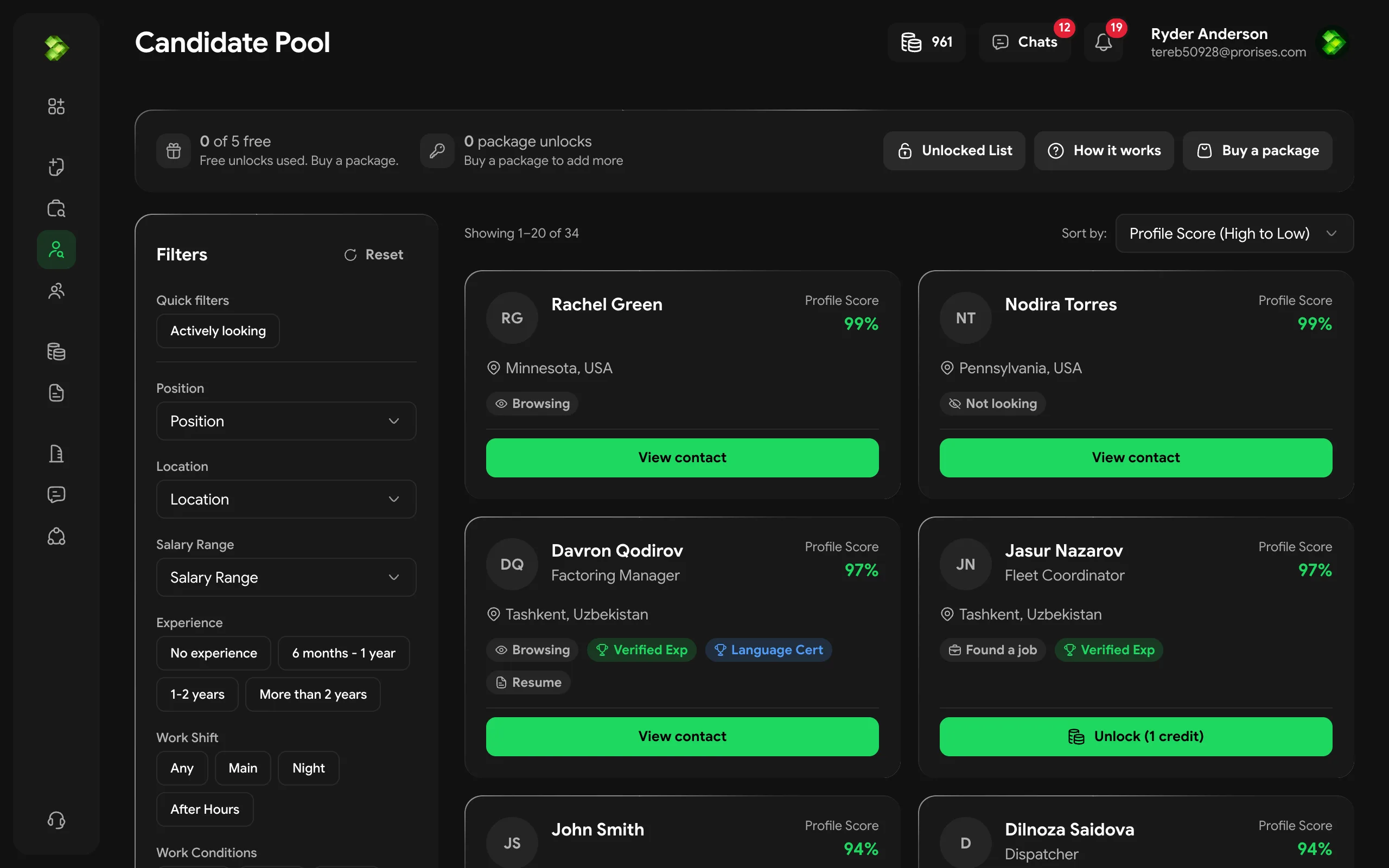
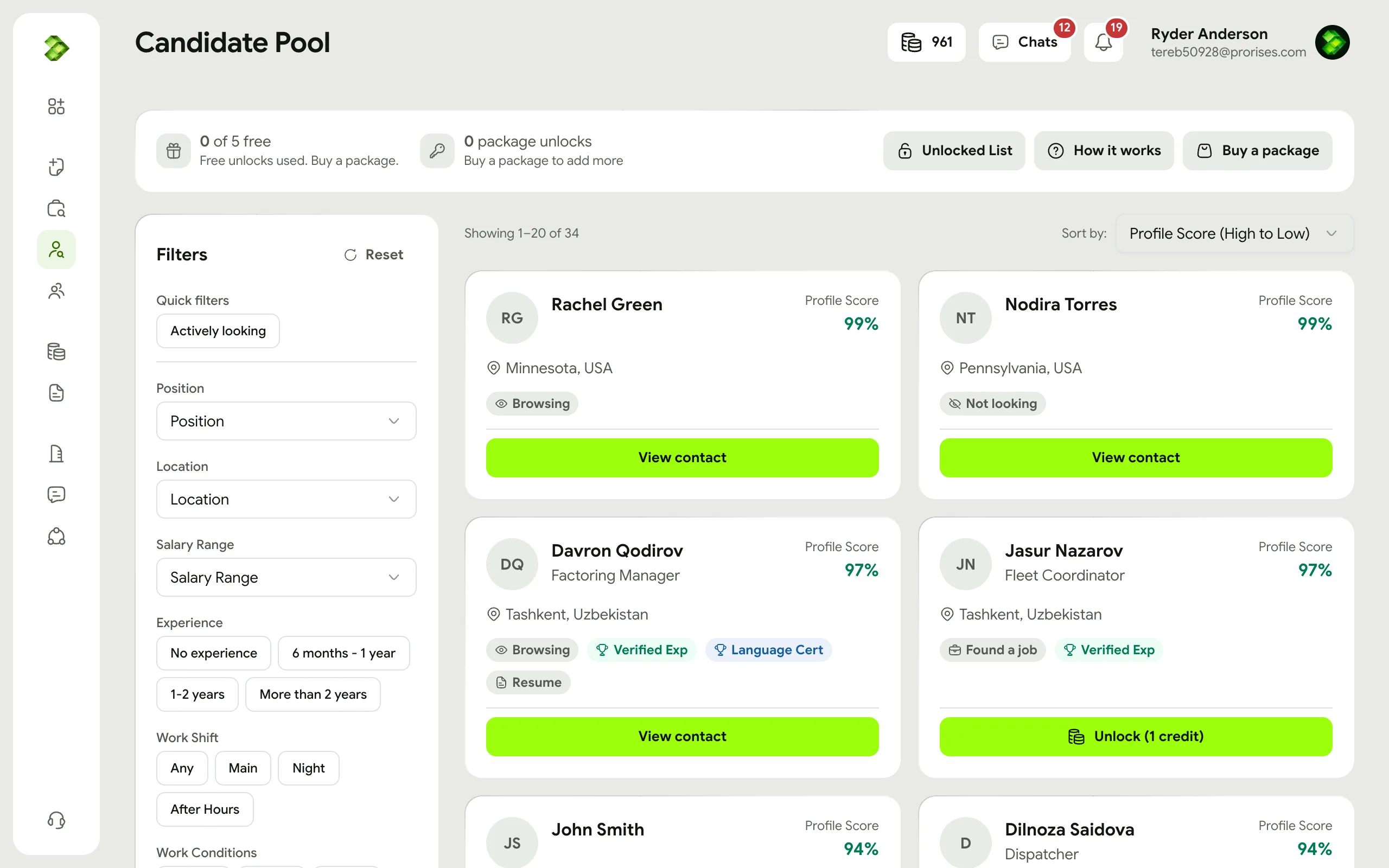
Find people who did not apply
Candidate Pool lists job seekers with their contacts hidden. Unlock someone to see their phone, email and Telegram. An unlock uses your free unlocks first, then an unlock package, then credits.
In the menu: Candidate Pool
 Enlarge
Ready to hire?
Post your first job. We review every job before it goes live.
Still have questions?
Read the FAQ or write to us.